The DApps feature lets your organization manage decentralized applications (DApps) as reusable objects in Fordefi, so you no longer have to manage DApp access indirectly through individual contract addresses. This avoids the repetitive policy setup that is difficult to maintain and more likely to drift over time. With DApps and DApp Groups, you can centralize trusted DApp management and reuse it across policies.
A common workflow might look like this:
- View DApps known to the Fordefi platform
- Review the addresses associated with a DApp
- Add a DApp for organizational use
- Create a DApp group, such as Trusted DEXs and add several approved DApps to it
- Simplify policy configuration by referencing a DApp or DApp Group, instead of repeating entries
Before working with DApps, keep the following in mind:
- DApps are managed separately from addresses. They are available from a dedicated DApps area in the main navigation.
- The known addresses shown for a DApp may not be exhaustive. Fordefi displays addresses it has encountered so far for that DApp.
- The Create Group and Add Contract buttons at the top right of the screen are actions for the whole DApps area. They stay visible on both the DApps and Groups tabs.
- Use Add Contract to register a DApp by its contract address (a DApp is tracked by its associated contract addresses).
- Use Create Group to start a new DApp Group.
- Adding a DApp does not require quorum approval.
- DApp Groups follow existing address-book governance rules. Permissions to create, edit, or delete DApp Groups follow your organization’s role-based access controls and admin quorum settings.
- Policies can reference individual DApps or DApp Groups.
- Some add flows depend on chain support. For some EVM-based flows, you can add a DApp directly. In cases where a DApp cannot be added directly, Fordefi provides guidance to contact Customer Success.
Use the DApps screen to find and review decentralized applications known to the platform.
- In the sidebar of the Fordefi web console, click DApps.
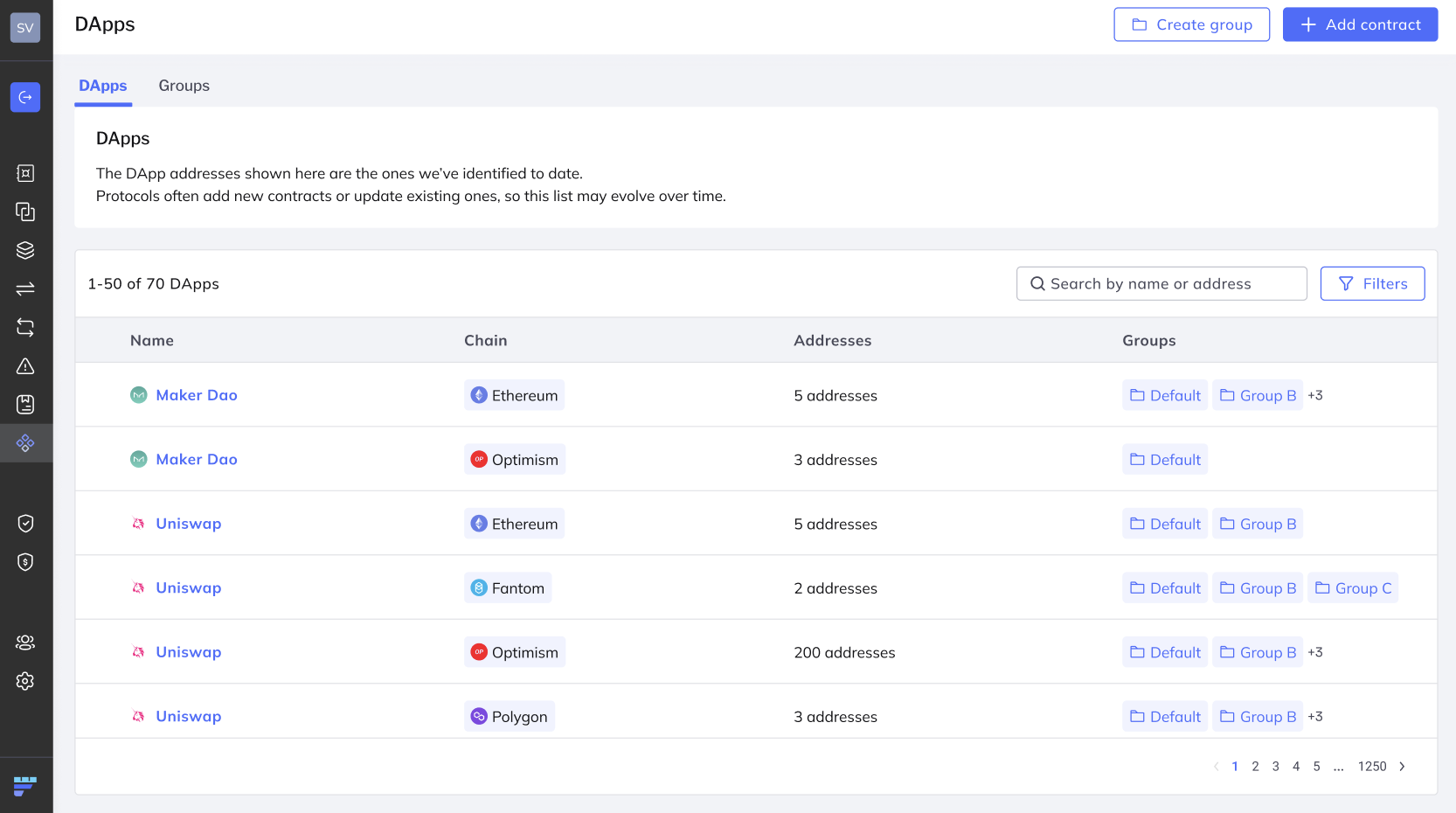
- Select a DApp from the list that is displayed.
- Review the DApp details page, including:
- DApp name
- Chain
- Known associated addresses
Add a DApp when you want to make it available for use in your organization.
In the sidebar of the Fordefi web console, click DApps.
In the screen that opens, the DApps that are approved by Fordefi are displayed. Search for the DApp you want.
If the DApp appears in the results, click Add Contract at the top right to add it.
Complete the requested information and save.
If you can’t find the DApp, search by DApp name, chain, or address.Admin quorum approvalAdding a DApp does not require quorum approval.
If the DApp is still not available, use the available add flow where supported. If direct addition is not supported for that case, follow the in-product prompt to contact Customer Success.
Create a DApp Group to manage multiple DApps together and reuse them across policies.
- In the sidebar of the Fordefi web console, click DApps.
- Click the Groups tab.
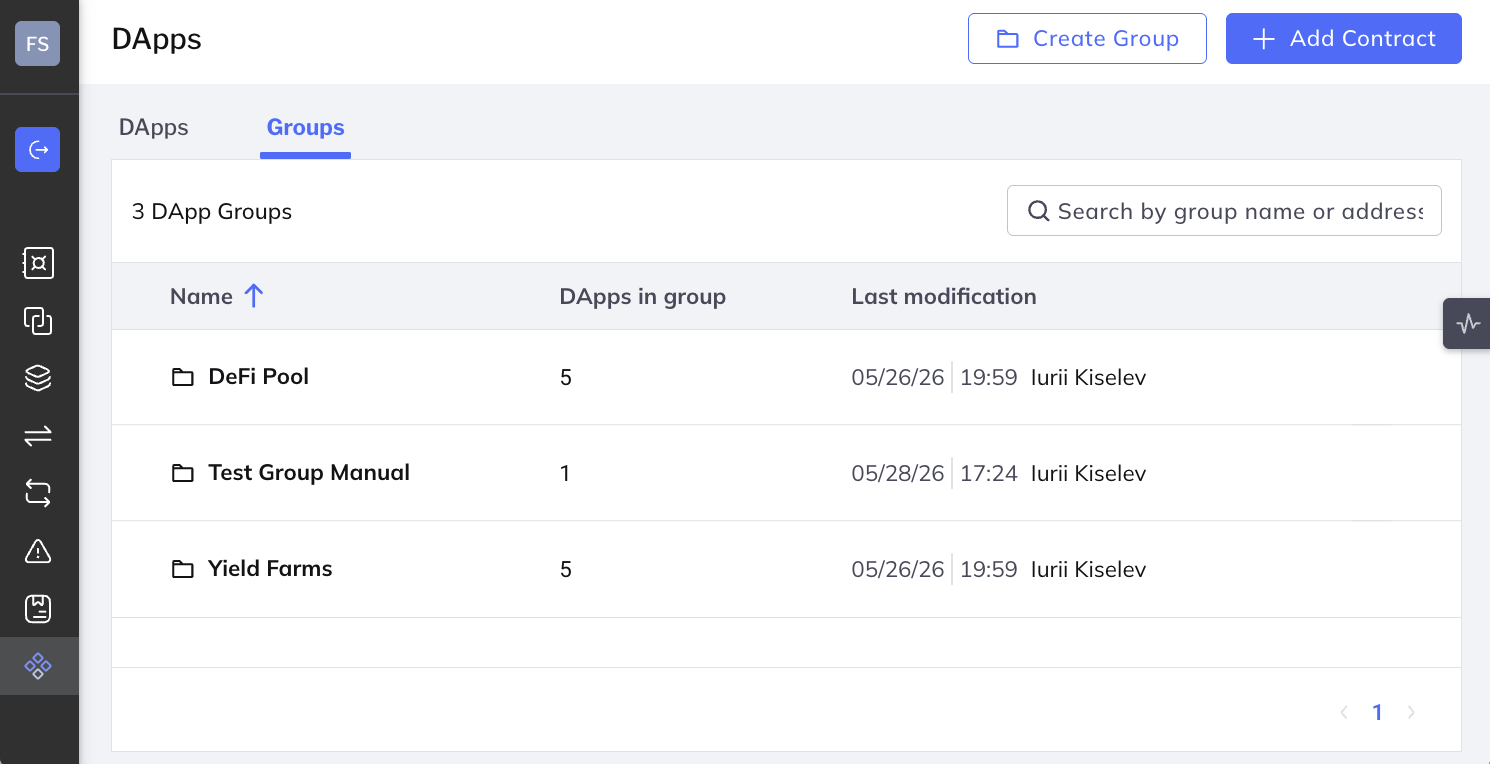
- Click Create group in the top-right corner.
- Enter a name for the group.
- Add the DApps you want included.
- Save the group.
After the group is created, it can be used anywhere DApp Groups are supported, including in policies.
Edit a DApp Group when you need to add or remove DApps from an existing set.
- Go to DApps.
- Click the Groups tab.
- Select the group you want to update.
- Make your changes.
- Save the group.
Changes to a DApp Group apply everywhere that group is referenced.
Delete a DApp Group if it is no longer needed.
Go to DApps.
Click the Groups tab.
Select the group you want to remove.
Click Delete.
Confirm the action if prompted.
Your ability to delete a DApp Group depends on your role and your organization’s approval settings.