Import a YAML file to add many DApp Groups to your organization in a single operation.
The file you import is normally one you exported from another Fordefi organization and edited outside Fordefi.
To create or edit groups by hand, see Manage DApps.
Make sure that the YAML file is properly formatted, as in this example. The export page describes the format.
dappGroups:
    - name: Ethereum DEXs
      dapps:
          - name: 1inch
            chain: evm_1
          - name: Uniswap V3
            chain: evm_1
            debank_id: uniswap3
    - name: Polygon Treasury
      dapps:
          - name: Aave V3
            chain: evm_137
          - name: QuickSwap
chain: evm_137- Only admins can import DApp Groups.
- An import requires a single Admin Quorum approval, in the same way as importing addresses.
- Only one DApp Groups import can be pending approval at a time. Approve or abort the pending request before you start another.
Open the Fordefi web console.
In the side menu, click DApps, then click the Groups tab.
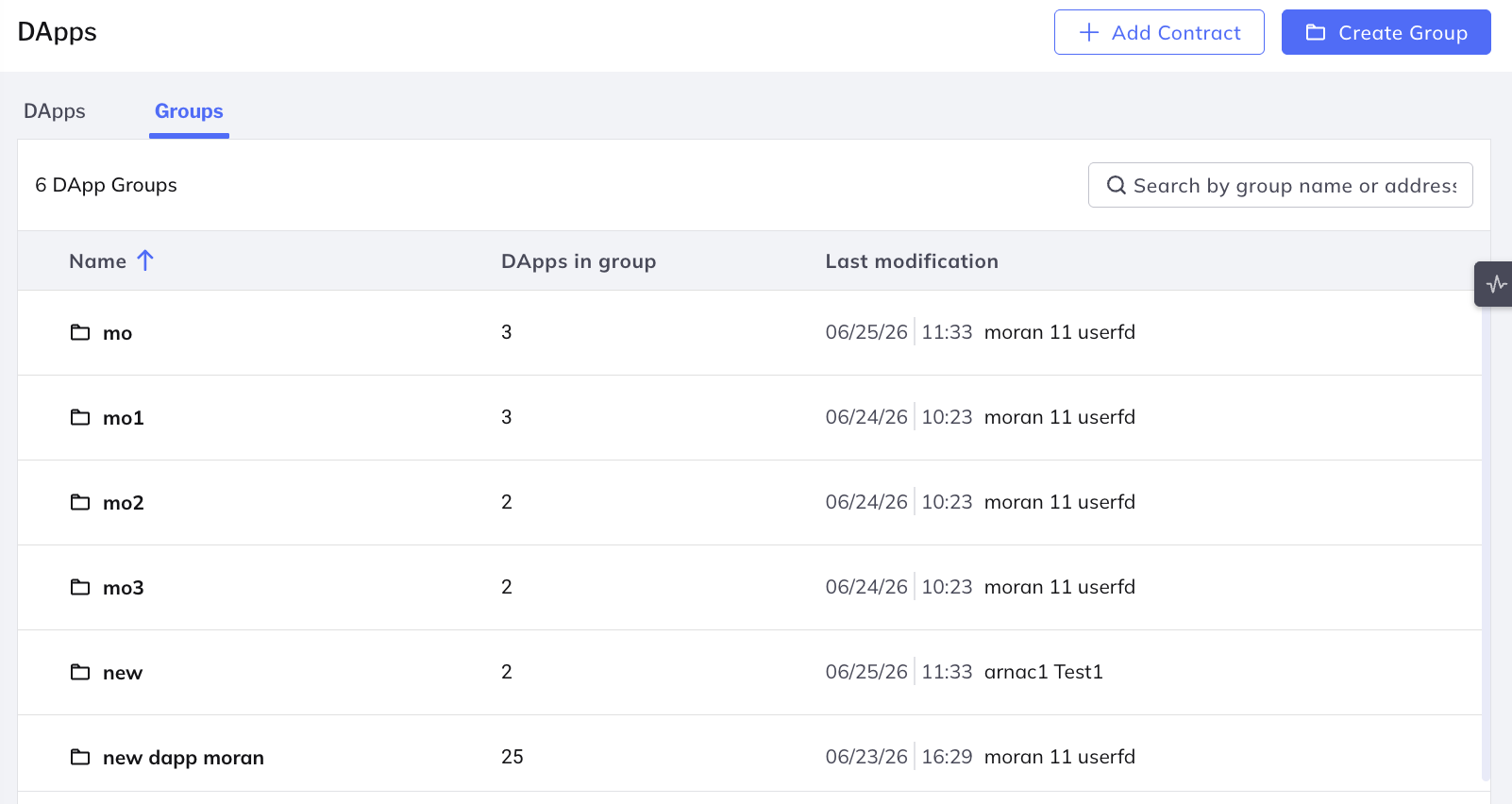
Click the arrow next to Create group, then click Import groups.
The Import DApp groups dialog opens.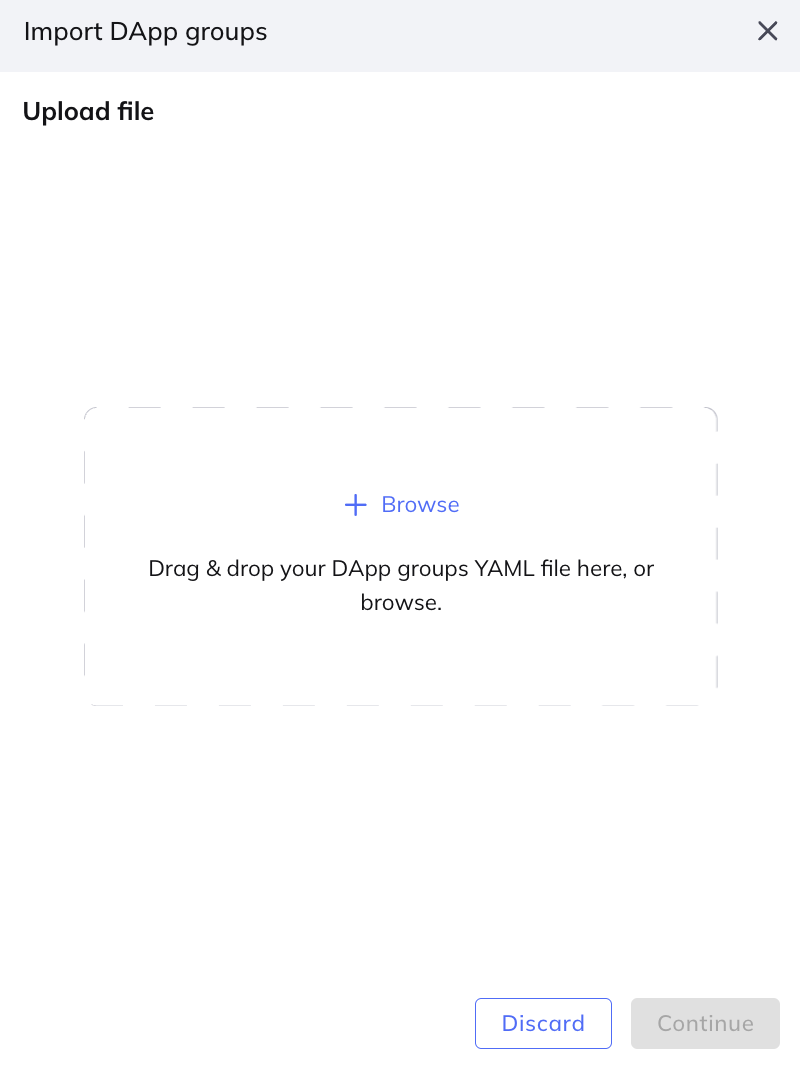
Drag your DApp Groups YAML file onto the dialog, or click Browse and select it. Click Continue.
Fordefi parses and validates the file, then displays the number of DApp groups it contains, followed by a card for each group showing its name and the number of DApps in it. If Fordefi cannot read the file, the dialog reports that the file failed to load. Check that the file is a valid YAML file and upload it again.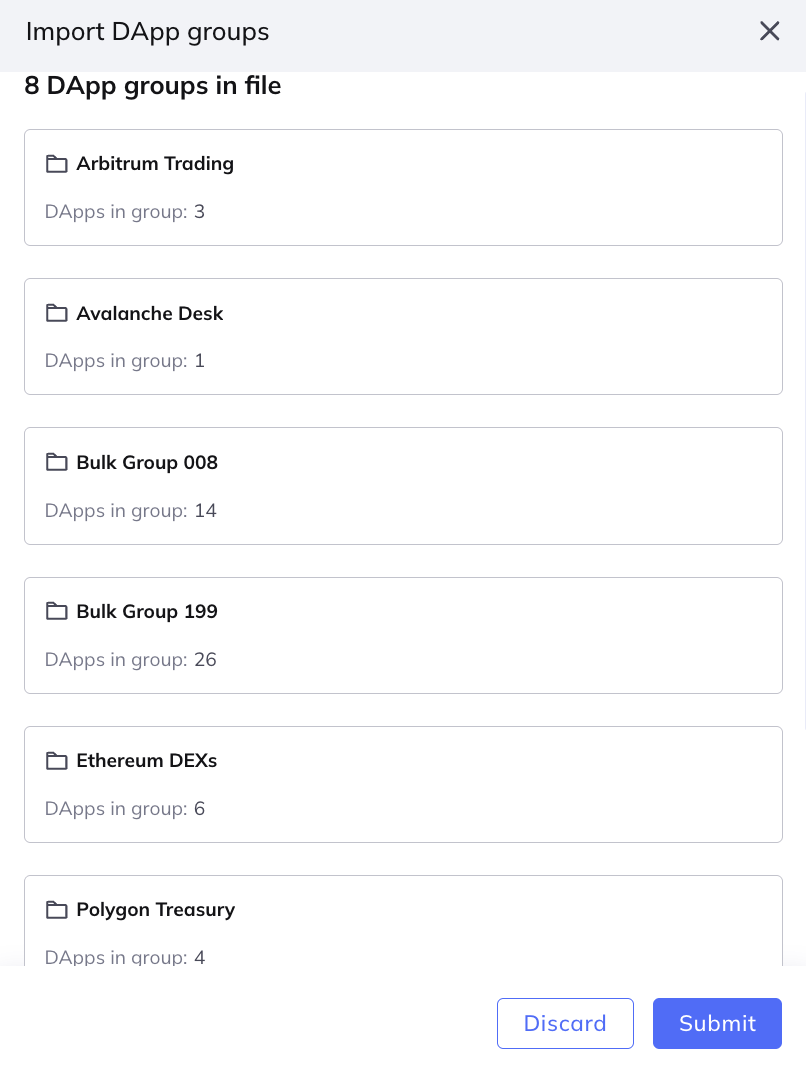
Review the errors and warnings reported on the group cards, and resolve them as described in Errors and warnings. Hover over a card to reveal the Edit and Delete icons.
Click Submit for approval.
An import request is sent to the Admin Quorum, and the DApp Groups list indicates that an import is pending approval.
To resolve an error or a warning:
- On the group card, click the Edit icon.
The group opens, with the error or warning displayed at the top. - Do one or more of the following:
- Change the Group name.
- Click Choose DApps to add DApps to the group.
- In the In group list, click the Remove icon next to a DApp. The DApp is dimmed, and you can click it again to restore it.
- Click Delete group to remove the group from the import.
- Click Done, or click Back to all groups.
To complete the import, the Admin Quorum must do the following on their mobile devices.
- Go to Management > Inbox.
- Tap Import DApp groups request.
The request shows the initiator, the date, and the number of groups imported. Tap View imported groups to see the groups in the import. - Tap Approve. To cancel the import instead, tap Abort.
When the required number of admins approve the request, the groups are created. If the request is aborted, no changes are made.