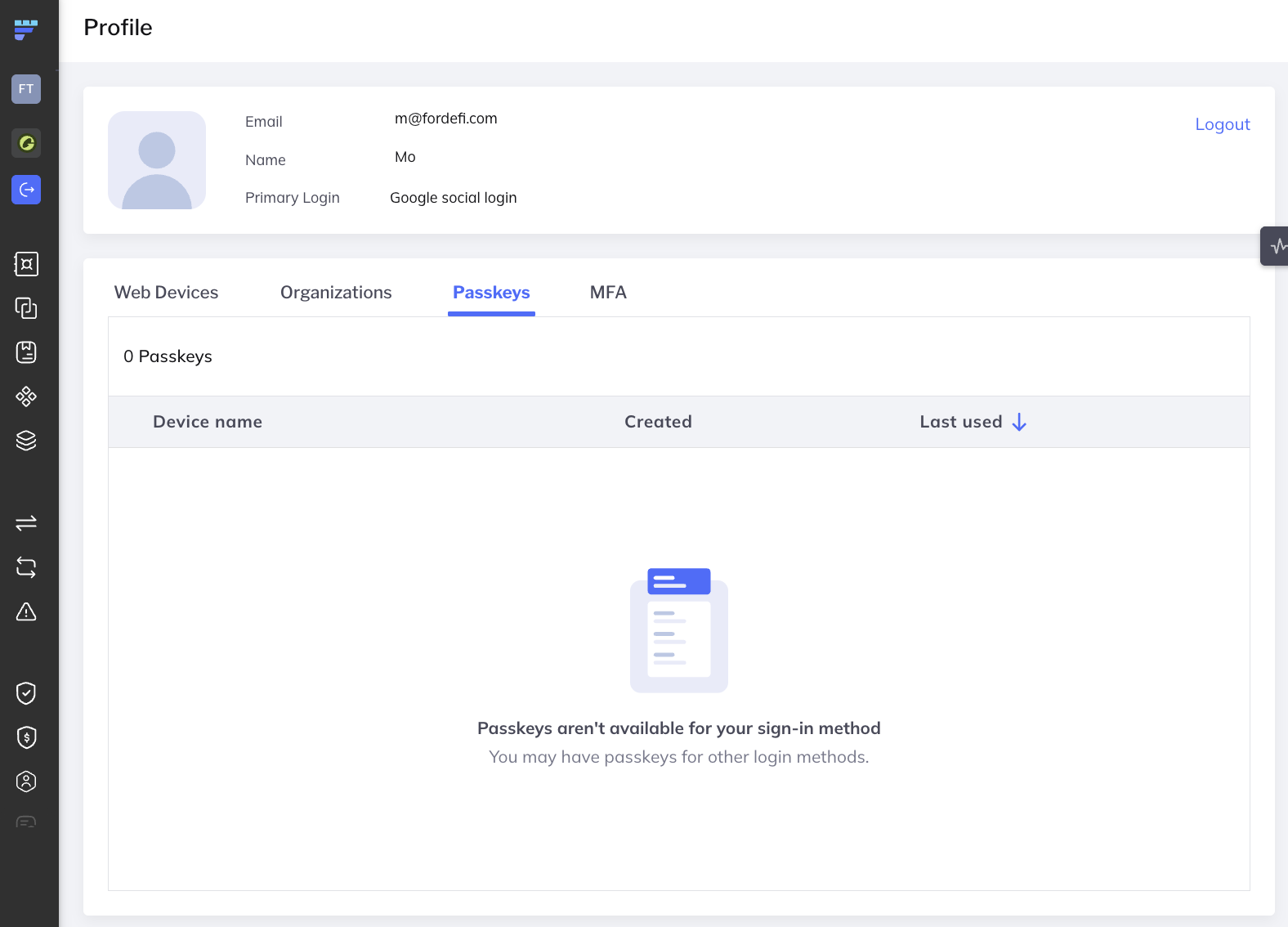
Every Fordefi user can review and manage their personal sign-in security from the Authentication area of their user profile. Your primary login method is shown on the main profile screen:
Adding or removing an MFA method, or removing a passkey, is a sensitive action. Before the change is applied, you'll be asked to re-authenticate using one of your existing MFA methods. When adding a new MFA method, you must verify with a different method than the one you're adding - for example, use a TOTP code to add a security key, or use a security key to add a TOTP app. The challenge is valid for that single action and expires after five minutes.
Your primary authentication method is shown on the main profile screen. It is read-only. Supported primary login methods are:
- Email and password OR passkey
- Google social login
- Microsoft social login
- Apple social login
- Okta SSO
To change or reset your primary login method, contact Fordefi support at support@fordefi.com.
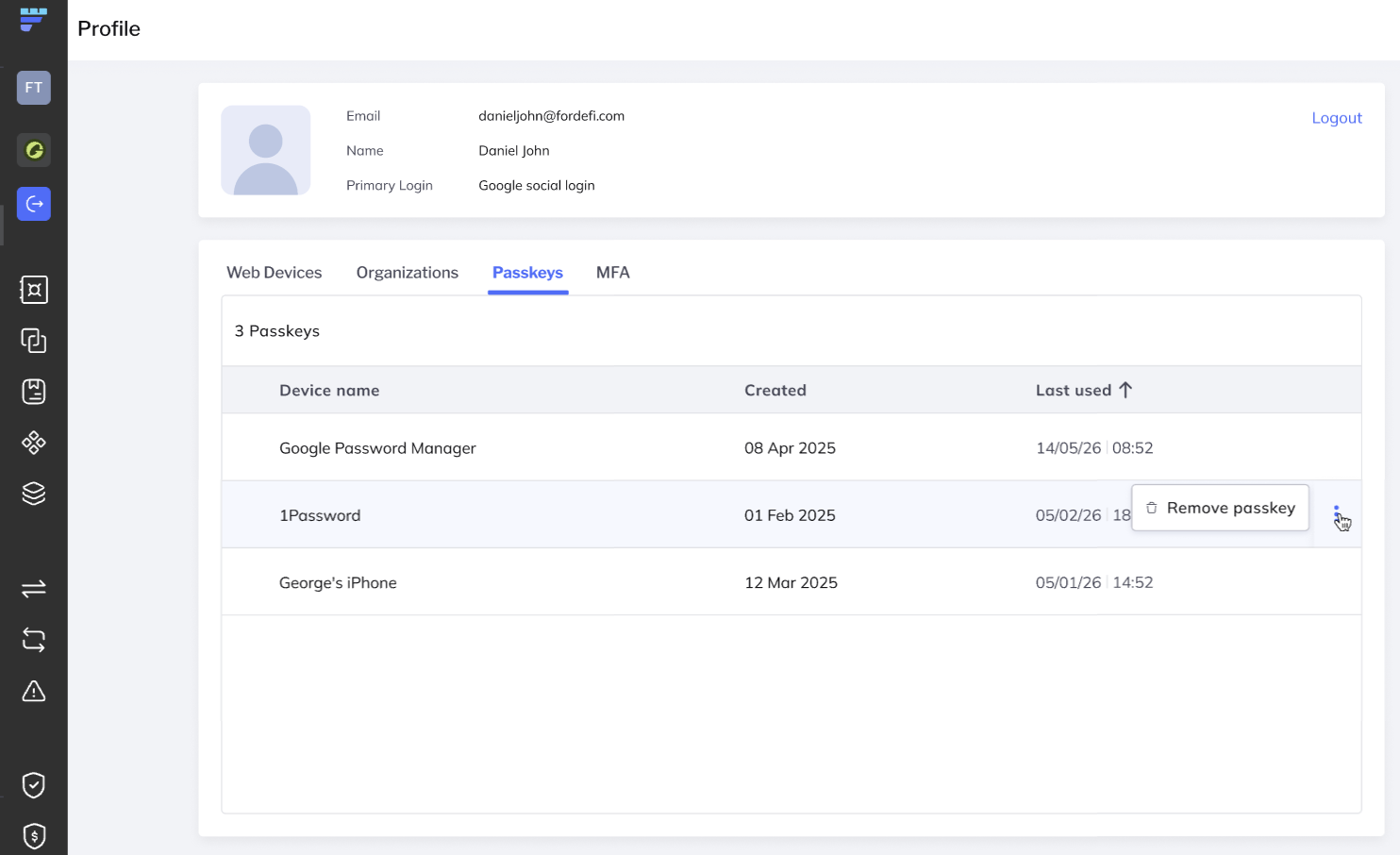
The Passkeys tab lists the passkeys registered to your account, with the following details:
- Device name: The authenticator name reported by your operating system or key manager.
- Created: When the passkey was registered.
- Last used: The last time the passkey was used to sign in.
- Action: Remove the passkey.
If you have no passkeys registered, the tab shows: "You don't have any passkeys yet."
- Click Remove on the passkey's row.
- Confirm in the dialog that opens.
- Complete the step-up authentication challenge.
- The passkey is removed and a "Passkey removed." confirmation appears.
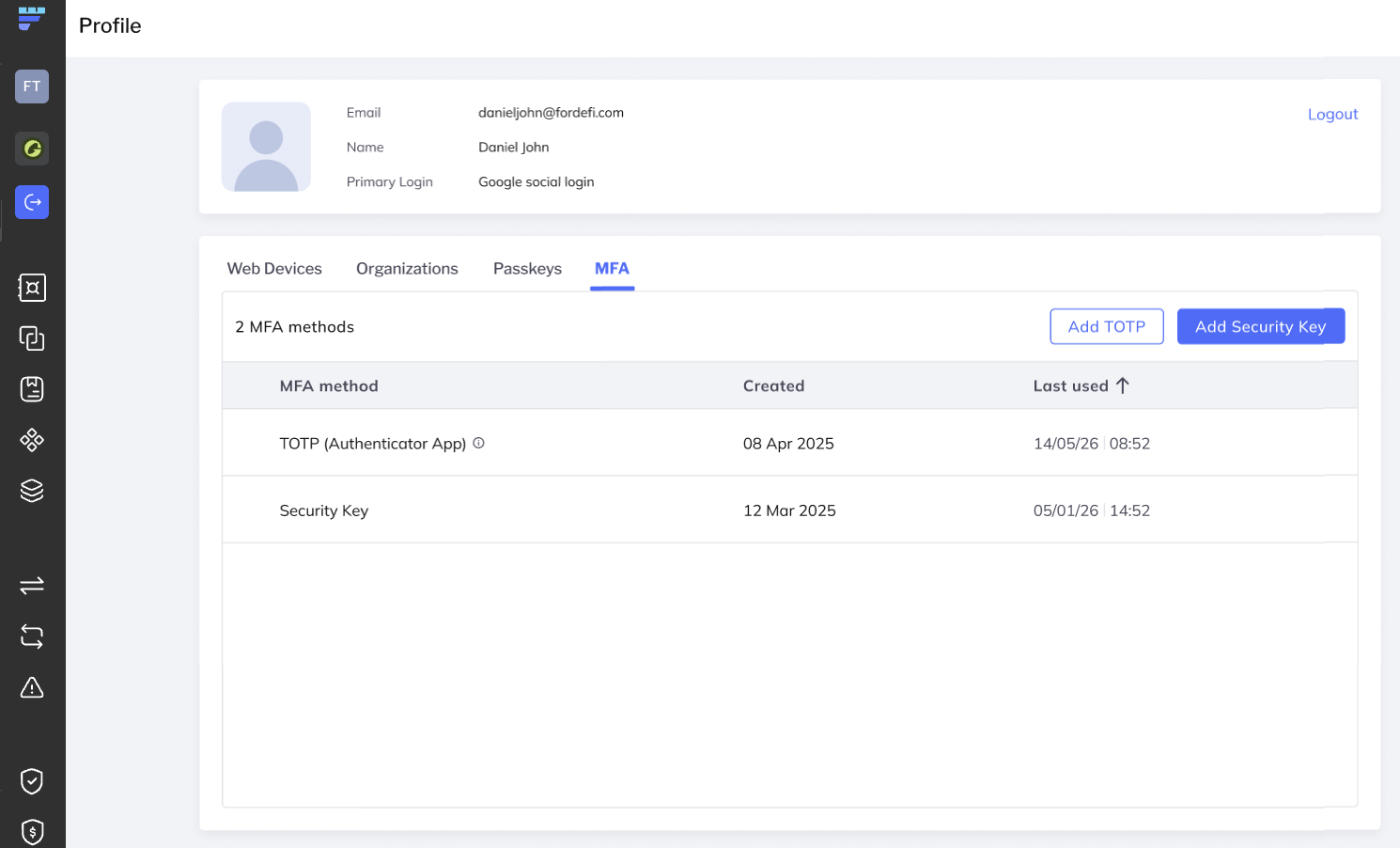
Your first MFA method is set up when you first sign in to Fordefi, and it is always a TOTP authenticator app. From the MFA tab you can view your methods and add more - additional TOTP apps or WebAuthn security keys (such as a YubiKey). You can enroll multiple methods of each type. If you have more than one method, you can sign in with any of them, on both web and mobile.
The tab lists your MFA methods, with the following details:
- MFA method - the factor type, either TOTP Authenticator App (for example Google Authenticator or Yubico Authenticator) or Security Key (for example a YubiKey).
- Created - when the method was added.
- Last used - the last time the method was used.
- Actions - add or remove a method.
Whether you can manage MFA depends on your organization's policy:
- If one of your organizations requires MFA, you'll be prompted to enroll a method.
- If none of your organizations require MFA, this tab is disabled - you cannot opt in on your own. Contact your organization administrator to enable MFA.
- Click Add MFA method.
- Complete the step-up challenge. You must verify with a method different from the one you're adding: to add a security key, verify with a TOTP code; to add a TOTP app, verify with a security key.
- The enrollment flow opens in a modal. Supported factors are TOTP and WebAuthn security keys (such as a YubiKey).
- Follow the prompts to enroll. For a security key, touch the key when prompted to authorize it. When enrollment succeeds, the modal closes and the table refreshes.
- Click Remove on the method's row.
- Confirm in the dialog that opens. Removing a method means you can no longer use it to sign in, and cannot be undone.
- Complete the step-up authentication challenge.
- The method is removed and a "MFA method removed." confirmation appears.
You must always keep at least one TOTP authenticator app so you are never locked out of your account (for example, when signing in on mobile). You can't remove your last TOTP method - Remove is disabled for it. Security keys can be removed freely, as long as one TOTP method remains.