Fordefi is rolling out MPC share refresh, a proactive security upgrade that periodically re-randomizes your organization's key shares. Device backups created before this upgrade can't stay valid across refreshes, so your current device backup must be deleted and replaced.
Your organization backup, vaults, keys, and funds are not affected.
Assess your organization's readiness and take steps toward MPC upgrade in the Fordefi web console.
After you reset, create a new backup immediately. Without a device backup, you can't recover access to your account if this device is lost or replaced.
- Update the app: Install the latest version of the Fordefi mobile app from the App Store or Google Play. The upgrade prompt appears only on the latest version.
- Cloud backup users: Be ready to approve access to your Google Drive or iCloud account again.
- Mnemonic phrase users: Have a safe place ready to record a new twelve-word phrase. Your old phrase stops working after the reset.
- Station70 or CoinCover users: No action is needed for these services. They back up your organization's keys, not your mobile device, so they are not affected by this upgrade. Learn more.
When the upgrade is available, the app prompts you in one of two ways: a Device Backup Upgrade screen, or a Device backup – Action required notification that takes you to the Device backup screen.
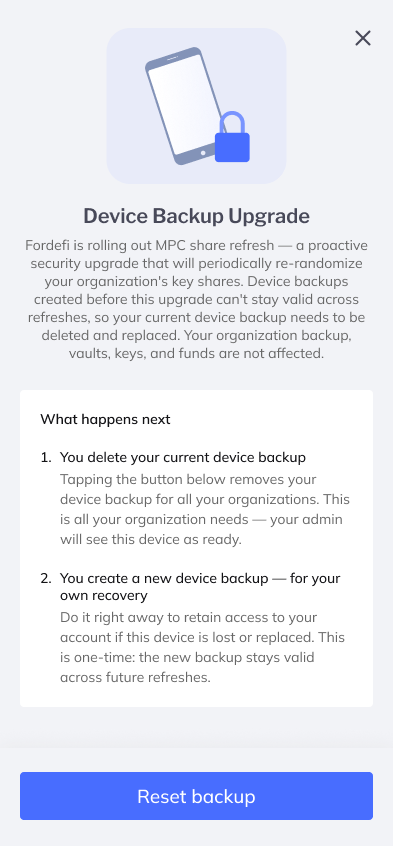
The screen explains the two steps:
- You delete your current device backup: The button removes your device backup for all your organizations. This is all your organization needs. Your admin sees this device as ready.
- You create a new device backup: Do this right away to keep access to your account if this device is lost or replaced. It is a one-time step. The new backup stays valid across future refreshes.
Tap Reset backup.
A confirmation asks whether you are sure. Resetting deletes your existing backup for all organizations, including any backed up from another device. You can create a new one straight after.
Tap Confirm reset. A notification confirms that the backup was reset.
After the reset, the Device backup screen shows No backup, and each organization on this device shows Backup required.
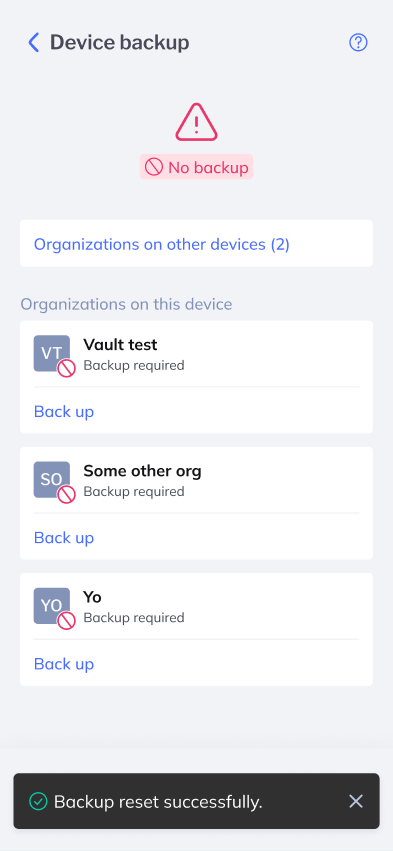
Tap Back up next to an organization and follow the standard backup flow. You can back up to the cloud or with a mnemonic phrase. See Back Up Your Mobile Device for each method's steps.
If one organization is backed up but others are not, the app shows a Backup your other workspaces notification. Back up every organization so you can recover access if you switch, lose, or reset your device.
No. If you used a mnemonic phrase, the reset invalidates it. Write down the new phrase and discard the old one.
No. The upgrade changes only how your device backup is stored. Your keys, vaults, addresses, and funds are unchanged.
The reset deletes your device backup for all organizations on this device in one step. You then create a new backup for each organization.
Contact your organization admin. If you lost your device or can't reach readiness, an admin can resolve your account. See Prepare Your Organization for the MPC Upgrade.