This page is available to organization admins on the web console. Mobile users should follow Update Your Device Backup.
Fordefi is rolling out MPC share refresh, a proactive security upgrade that periodically re-randomizes your organization's key shares. Your wallet keys, addresses, and funds are unchanged.
To complete the upgrade, every user who holds a mobile device must:
- Update the Fordefi mobile app: The latest version is required to take part in share refresh.
- Reset their device backup: Device backups created before the upgrade can't stay valid across refreshes, so they must be deleted and replaced with a new backup.
The Organization readiness panel shows which users still need to act and lets you resolve users who can't be reached.
Your organization backup, vaults, keys, and funds are not affected. Viewers and API users are excluded from the readiness list because they don't hold device shares or backups.
In the web console sidebar, click MPC Upgrade.
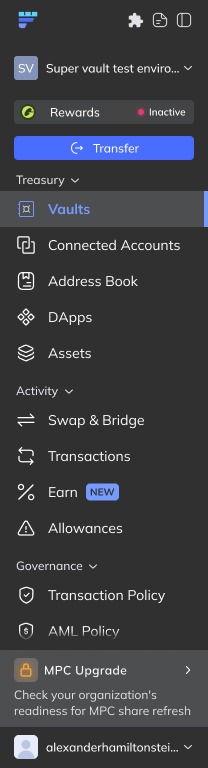
A screen opens to provide an overview of your organization's current readiness.
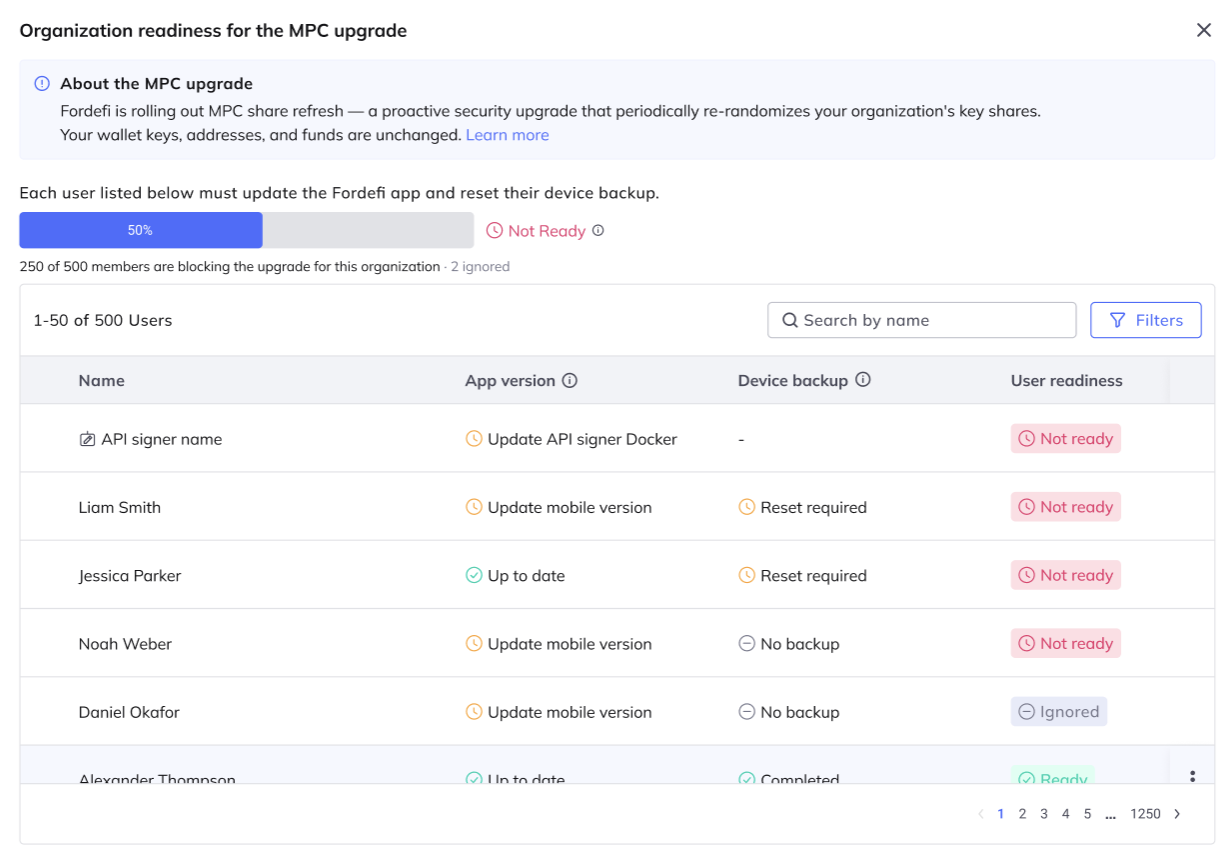
The top of the screen shows:
- Progress: A progress bar and a Ready or Not ready status for the organization.
- Blocking users: How many users are still blocking the upgrade, and how many have been ignored.
Below the summary, the table lists the users who need to act. Use the search box to find a user by name, and Filters to narrow the list.
| Column | Values | Meaning |
|---|---|---|
| Name | User name | The user, or the API signer if your organization has one. |
| App version | Up to date, Update mobile version, Update API signer Docker | Whether the user's app, or the API signer, is on the latest version. |
| Device backup | Completed, Reset required, No backup | Whether the user's device backup is in the new format or has no backup at all. |
| User readiness | Ready, Not ready, Ignored | Overall state for the user. |
A user is Ready when their app is up to date and their device backup is either complete in the new format or does not exist. Your organization is Ready when every listed user is Ready or Ignored.
Click a row to open the user's details. The details show the user's app version, device backup state, and the actions required to become ready.
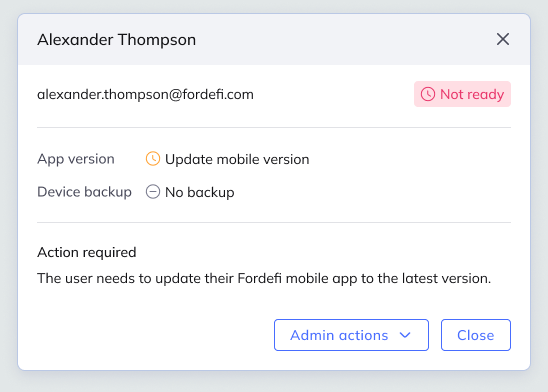
Depending on the user's state, the action required is one or more of the following:
- The user updates their Fordefi mobile app to the latest version.
- The user deletes their device backup without creating a new one.
- The user updates to the new format (recommended).
If a user can't update or reset, for example because they lost their device or are no longer active, open their details and click Admin actions. The options shown depend on the user's state.
Deletes the user's device backup for this organization. This option is available when the user's backup needs to be reset.
Review the confirmation before you proceed:
- Force delete backup: The admin deletes the client backup immediately.
- No longer blocking: Once deleted, the user stops blocking the MPC upgrade for this organization.
- Other organizations: If the user belongs to additional organizations, they must reset their backup there before they can create a new one.
Click Delete mobile backup to confirm. A success notification appears.
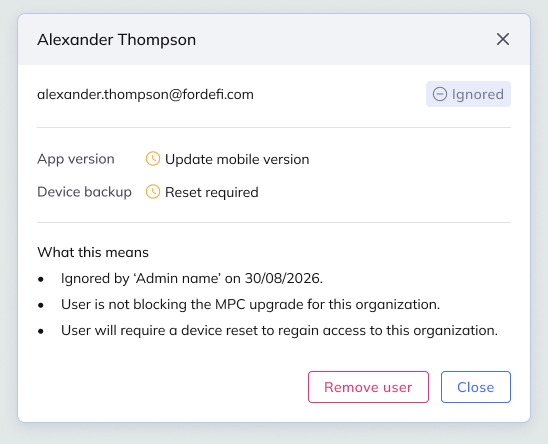
Ignores the user so they no longer block the upgrade. Use this for a user who can't reach readiness, such as someone with a lost device.
An ignored user:
- Shows as Ignored: The details record which admin ignored the user and when.
- Doesn't block the organization: The organization can reach Ready while the user is ignored.
- Needs a device reset: To regain access to this organization, the user must have their device reset in the future to a version that Fordefi will roll out.
Removes the user from the organization. This uses the standard remove-user flow and its safeguards. See Remove a User.
If your organization uses an API Signer, it appears in the users table with its own status. If it shows Update API signer Docker, update it to the latest version. The only other action available for an API signer is Remove API signer.
Users on a mobile device are prompted to update their app and reset their device backup. Share these steps with them: Update Your Device Backup.
Users who back up with a mnemonic phrase must write down a new phrase after the reset. Their old phrase no longer works, so remind them to discard it.