Click a vault in the vault list to drill down to its details.
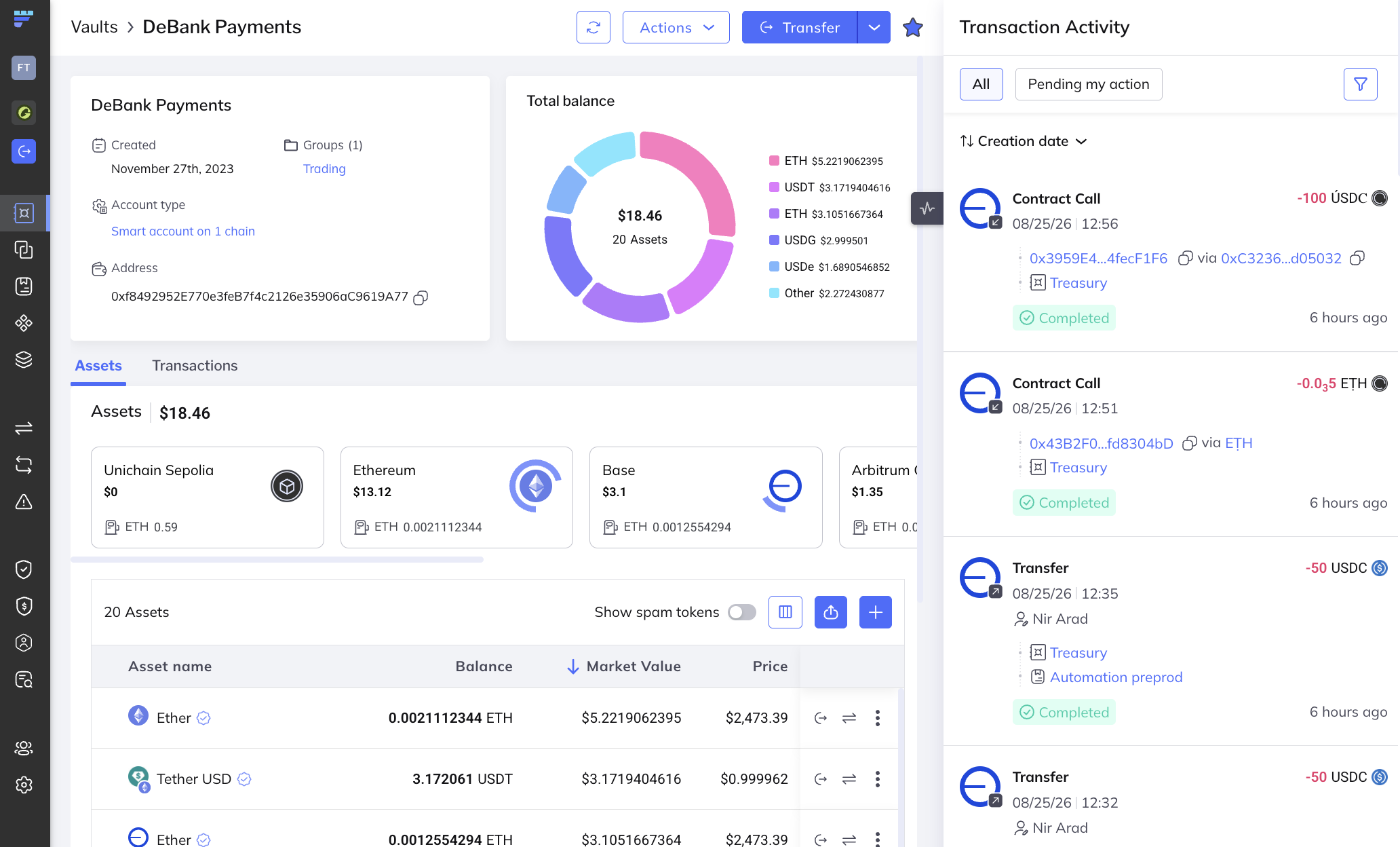
The upper-left panel displays:
- Name
- Date of creation
- Blockchain address
- Group(s)
Use the buttons on the upper right to quickly perform common vault operations.

Updates the balances of all tokens by rereading them from the node.
Click Actions to display a menu that lets you:
- Add token
- Rename vault: Assign a new name to the vault.
- Copy vault ID: Copies the ID to the clipboard.
- Archive the vault
Click Transfer to send transfers.
Click the star to "favorite" this vault or click it again to "unfavorite" it. Learn more.
The Total Balance panel displays:
- Total balance of the assets in the vault, in real-time.
- The balance held in the different assets on the different chains.
The Assets panel lets you view details of the assets in the vault, filter assets by blockchain, and more.

At the top of the panel is a summary of the vault assets. In the image shown:
- 40 is the number of different assets in the vault.
- $25.1 is the USD value of those 40 assets.
The assets as they are distributed across the blockchains are displayed in "bubbles". A few examples from the image above:
- Polygon holds 9.354 MATIC, an equivalent of $11.97 of the total $25.1.
- Ethereum holds 0.002744 ETH, an equivalent of $11.53 of the total $25.1.
Click one or more blockchain "bubbles" to display their details in the table below. For example, in the image shown here, Polygon and Arbitrum One are selected (they are colored light blue). Only the assets belonging to those two blockchains are currently displayed in the table.
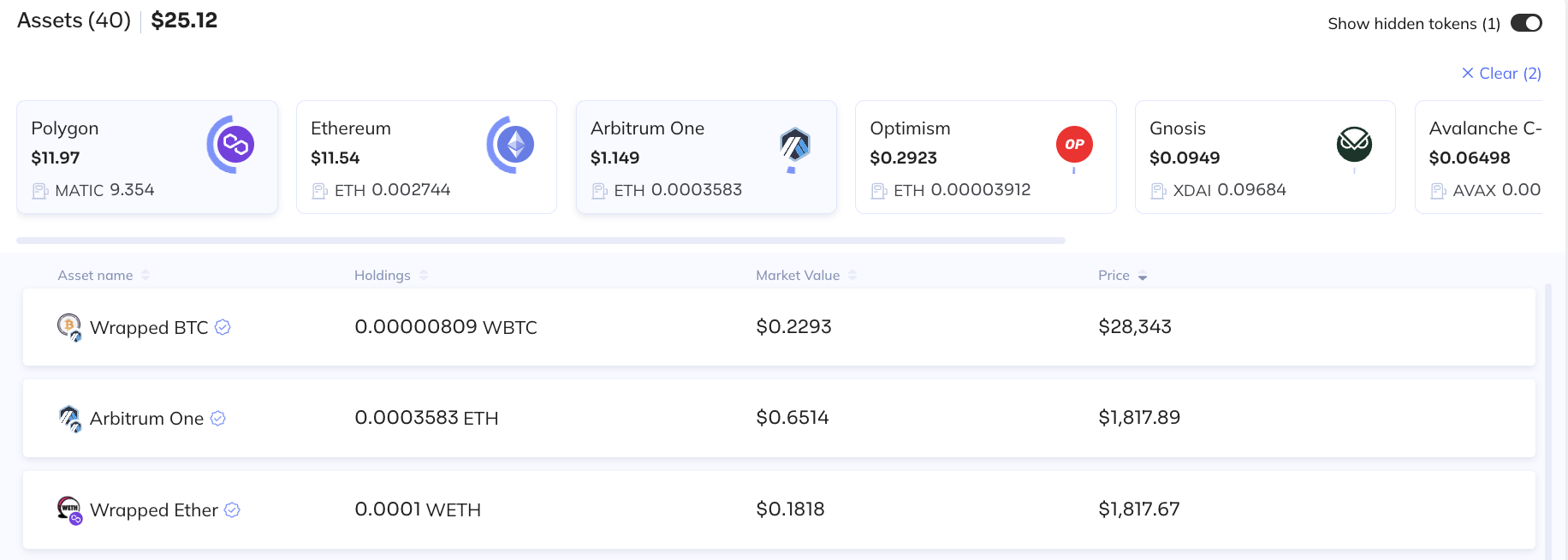
You can show or hide the Asset tokens that you have removed from your portfolio in the Asset page.
Toggle the Show hidden tokens button at the upper right of the Assets panel.
This panel displays summary details of the latest transactions that were sent from the vault.
- Click any transaction to see its details.
- Click View all transactions at the top of the panel to jump to the Transactions page.
A dedicated Stuck transactions panel notifies you about transactions that have been stuck for at least 10 minutes.
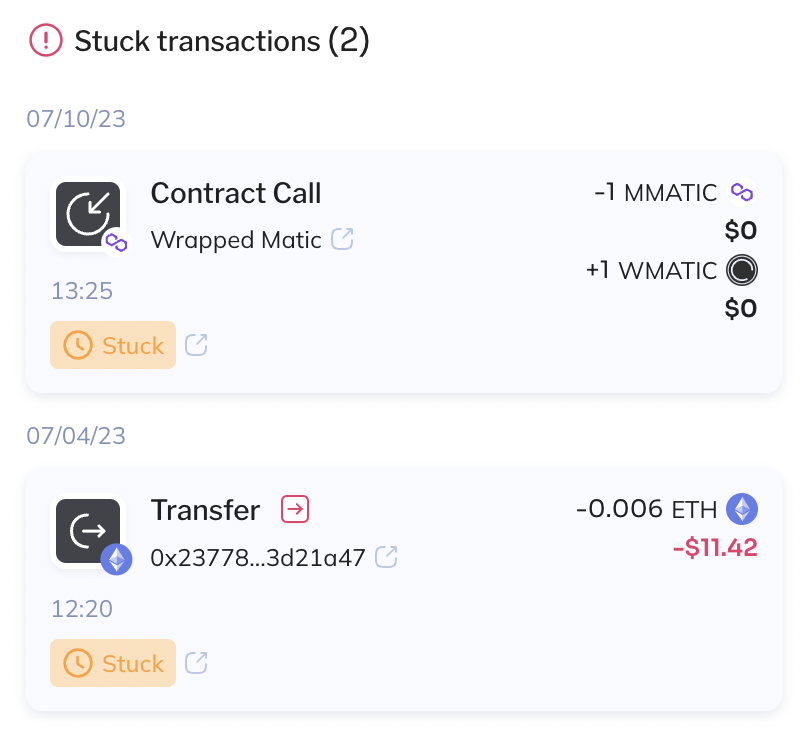
Click any of these transactions to display its details.
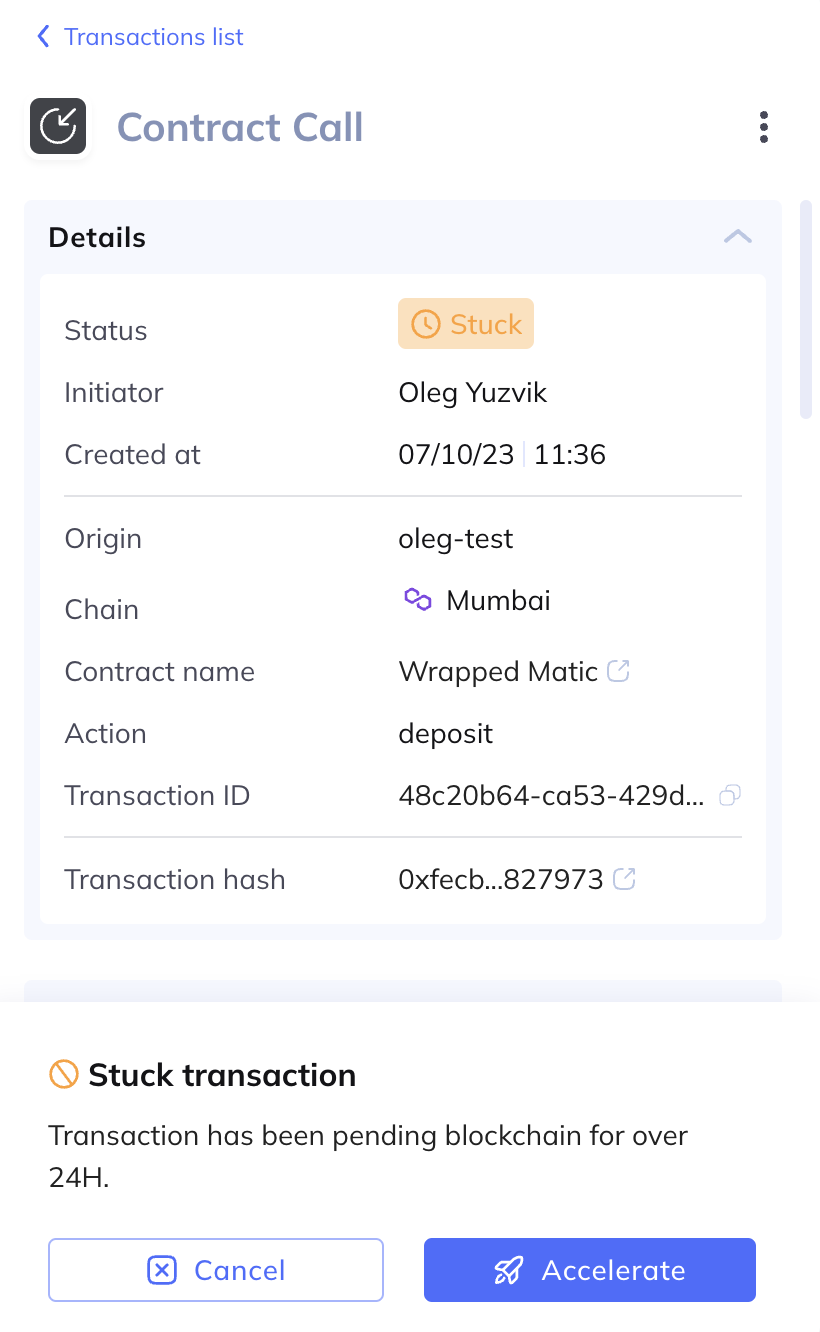
Click Accelerate to accelerate the stuck transaction. Learn more about accelerating.