When a transaction is blocked, requires approval, or is allowed, the outcome is decided by your transaction policy. The Policy Explanation view shows you which rule decided the outcome and why — a human-readable, per-rule breakdown of how your transaction was evaluated, so you can confirm expected behavior or debug an unexpected one without contacting support.
Policy Explanation is available to admins, who can view policy rules. Traders don't see policy rules, so they can't view the explanation directly — instead, a trader can copy a link to the explanation and share it with an admin, who can analyze it further. See Share an explanation.
- Policy Explanation covers transaction policies. It is not available for AML policies.
- Explanations are available for transactions whose policy hasn't changed since evaluation.
You can open Policy Explanation at two points in a transaction's lifecycle:
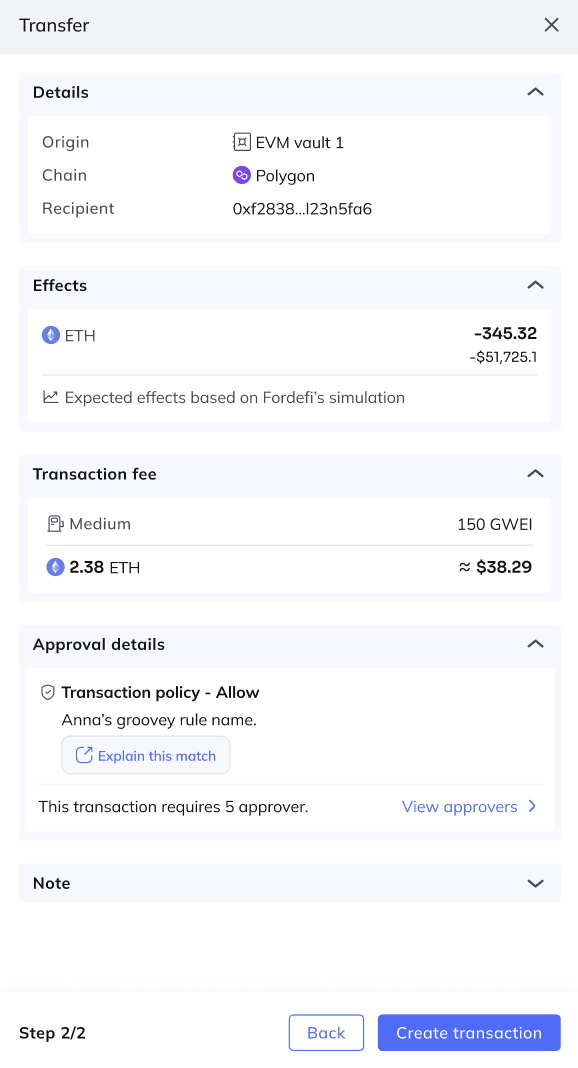
Before you create a transaction (prediction). When you preview a transfer, swap, or allowance revocation on the web console or the browser extension, Fordefi shows the policy decision. Click Explain this match to see which rule applied and why.
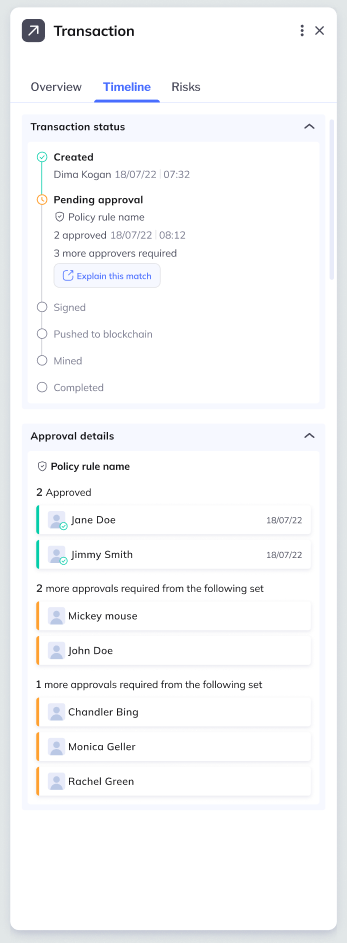
After a transaction exists. Open the transaction, go to the Timeline tab, and click Explain this match to see which rule matched and why other rules did not.
In both cases you're taken to the Policy Explanation screen, where the explanation is shown as an overlay on the familiar policy rules view.
The Policy Explanation screen is designed for desktop. On mobile, Fordefi shows a link to the explanation instead of the full view — open it on a desktop browser to see the breakdown.
The screen has two parts:
- The policy rules list (left): The same ordered list of rules from your transaction policy, with a status badge on each rule showing how it was evaluated against this transaction.
- Transaction Inputs (right): A fixed panel showing the exact values that were fed into the policy for this transaction (initiator, origin, recipient, amount, and so on). For each condition type, it shows the transaction's value plus any related grouping or enrichment, so you can see the transaction exactly as the policy engine saw it.
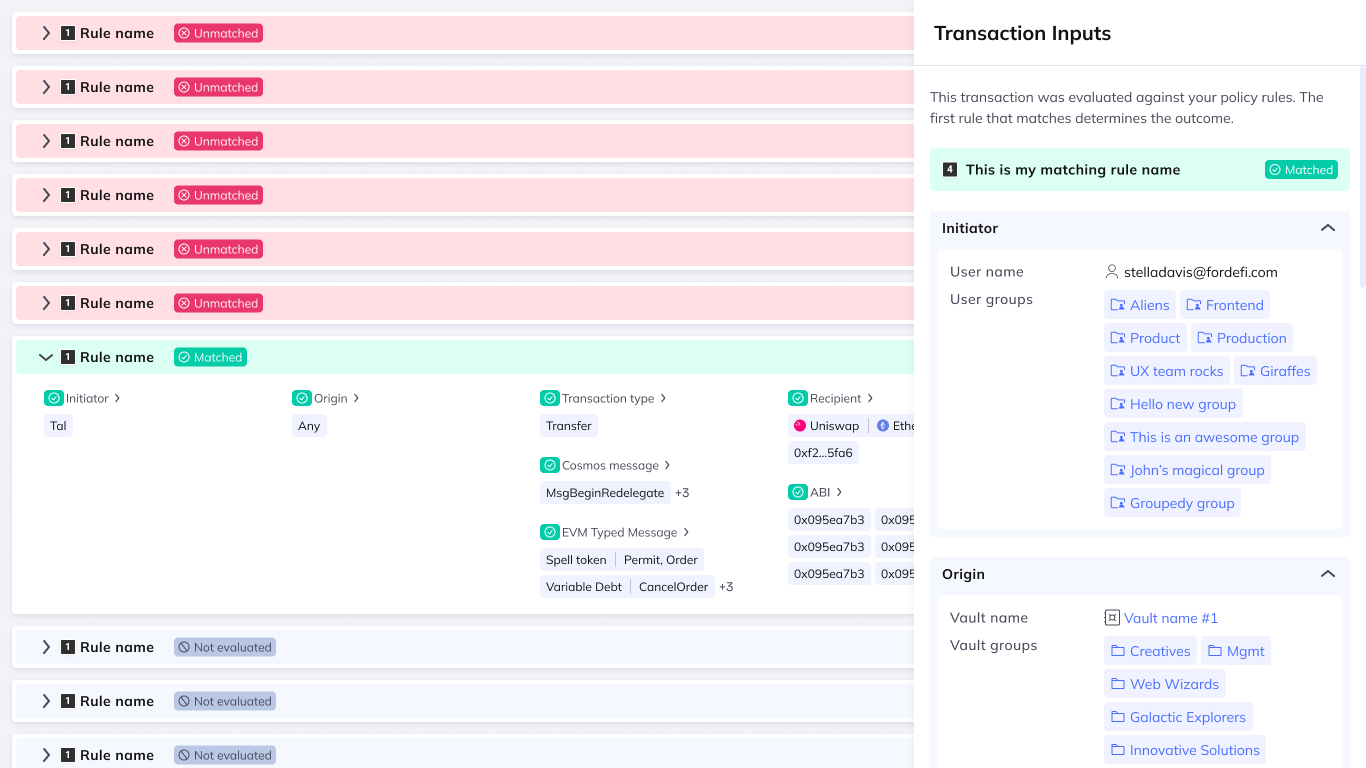
Because the policy is evaluated top to bottom and the first matching rule wins, reading the list from the top tells the whole story: the rules above the match did not apply, the matched rule set the outcome, and the rules below it were never reached.
To keep the panel readable, conditions that don't apply to the transaction are shown compactly (for example, as a dash) rather than as long "none" entries.
Each rule in the list carries one of the following status badges:
| Status | Meaning |
|---|---|
| Matched | The transaction satisfied all of this rule's conditions. This is the rule that determined the outcome. Only one rule matches. |
| Unmatched | The transaction did not satisfy at least one condition, so the rule was skipped and evaluation continued to the next rule. |
| Skipped | The rule was never evaluated because an earlier rule already matched. Rules below the matched rule are always skipped. |
| Indeterminate | A condition could not be evaluated for a temporary, system-level reason (not a policy mismatch) — for example, a failed simulation, an unavailable asset price, or an RPC outage. Fordefi could not confirm whether the rule matched. |
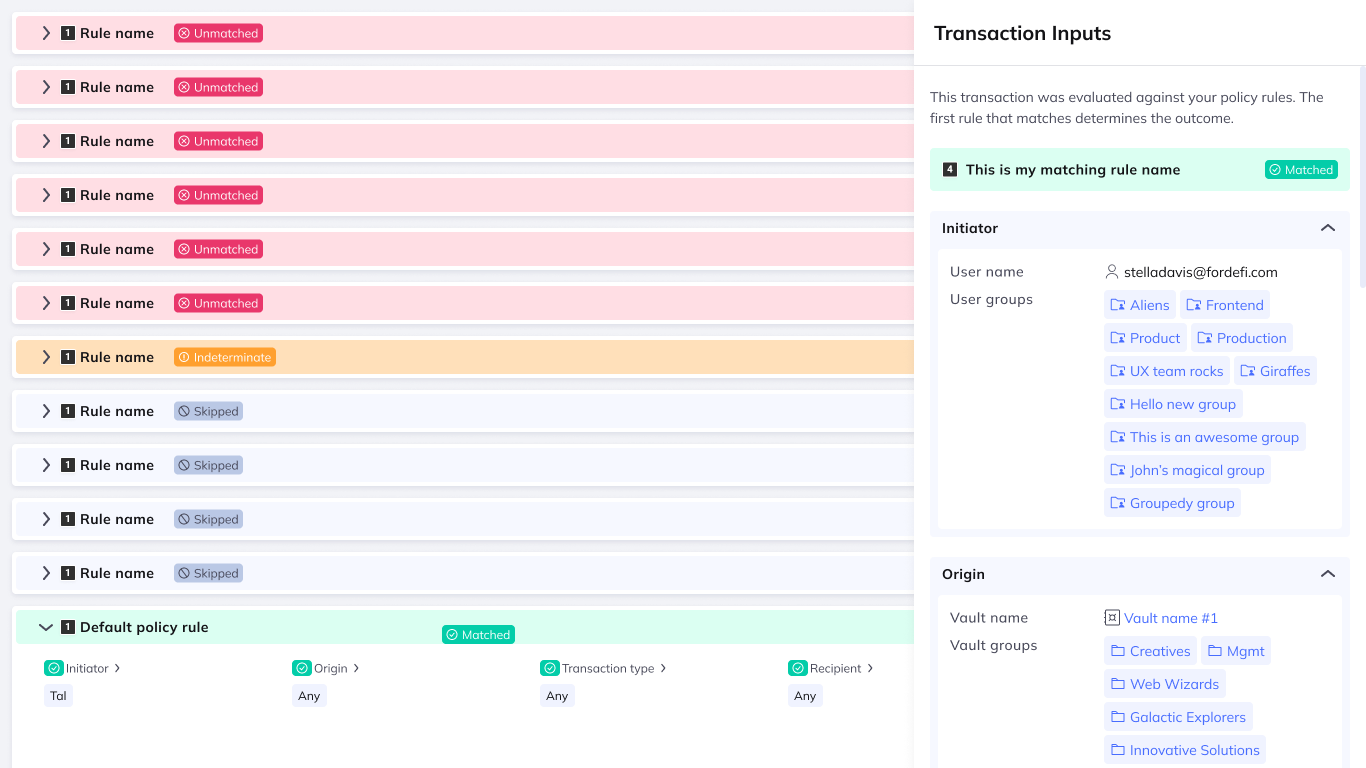
The Default policy rule at the bottom of the list matches any transaction, so it applies whenever no rule above it matched. See the default rule.
Expand the matched rule to see how each of its conditions (matchers) was evaluated — Initiator, Origin, Transaction type, Recipient, Asset, Amount, ABI, EVM Typed Message, Cosmos Message, and so on. Each condition shows its own status so you can see exactly why the rule matched.
A rule's overall status is composed from its conditions:
- Matched: Every required condition matched.
- Unmatched: At least one condition definitively did not match. (This is enough to fail the rule, even if other conditions were Indeterminate.)
- Indeterminate: No condition definitively failed, but at least one required condition could not be evaluated, so the match can't be confirmed or ruled out.
A rule can still resolve to Matched or Unmatched while one of its conditions is Indeterminate. When that happens, the Indeterminate condition is still surfaced with its reason, so you understand exactly what could and couldn't be evaluated.
Some transactions can't produce a value for a given condition. When that happens, the input is marked Unmatchable with an explanation, so you understand why the transaction can only match rules where that condition is set to Any.
The most common case is the recipient. A recipient is unmatchable for transaction types that don't specify a recipient in a standard way:
| Transaction type | Why the recipient is unmatchable |
|---|---|
| EVM Personal Message | Personal messages don't specify a recipient — they aren't associated with any DApp address or counterparty. |
| Non-EVM message | Non-EVM message types don't carry recipient information in a standard way. |
| Black-box transaction | The payload is opaque, so no recipient can be extracted. |
The transaction amount can also be unmatchable or effectively infinite:
- Infinite (no price): The outgoing token has no price, so its value can't be compared against an amount condition.
- Infinite (unlimited allowance): An unlimited allowance has no fixed amount to compare.
- Unmatchable (by type): The transaction type has no amount to evaluate.
In each case the input states the reason explicitly instead of showing a raw or misleading value.
When an outcome doesn't match your intent, open the relevant rule directly from the explanation and adjust it — for example, widen an amount, add a recipient, or reset an exhausted periodic amount. See Edit transaction policy. Policy changes require Admin Quorum approval.
A trader who is blocked by policy can copy the explanation's link and send it to an admin. The admin opens the link on desktop to view the full breakdown and, if needed, adjust the policy.
An explanation is only shown while the transaction policy hasn't changed since the transaction was evaluated. If the policy was edited in the meantime, Fordefi shows a snapshot disclaimer, because the current rules may no longer reflect how this transaction was decided.
Learn more: