The Transaction Feed gives you a single place to monitor recent activity across your organization in Fordefi.
Open this panel from anywhere in the platform to view transaction activity across vaults, networks, transaction types, and initiators, and to see the action items that need your attention. The feed updates automatically as transaction statuses change.
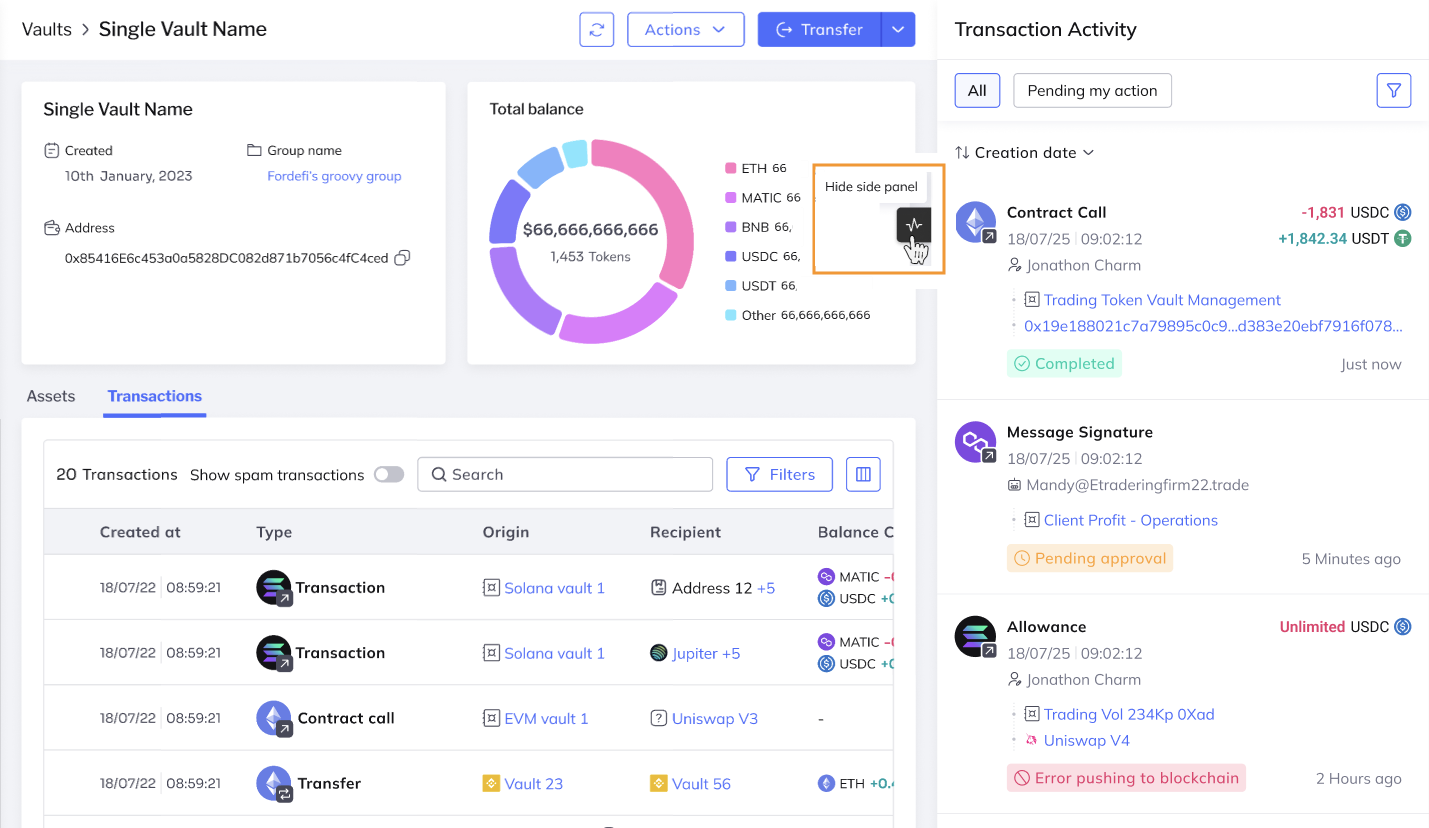
- Click the Transaction Feed icon
 on the right side of the page to display the panel.
 - Click the icon again to hide it.
When collapsed, the feed can appear in a minimized or icon-only state.
Use the Transaction Feed to:
- Monitor recent transaction activity
- Find items that require your action
- Review system updates related to operational activity
- Filter activity to match your role and current task
Keep these points in mind before using the Transaction Feed:
- The feed is for monitoring activity. It doesn’t let you create or approve transactions directly.
- The feed is available to all users. Still, what you can see depends on your permissions.
- Non-admin users can see only transactions in vaults they have access to while admins can see organization-wide activity, when permitted.
- Filters persist through page reloads but on relogin, the feed returns to its default settings.
The Transaction Feed includes these views:
Shows recent transaction activity in chronological order.
Use this view to:
- Monitor new and updated transactions
- Review status changes
- Open transaction details
Each item can include details such as:
- Vault name
- Chain
- Transaction type
- Initiator
- Direction
- Status
Use Action items to find transactions that need your attention.
Available filters can include:
- My pending actions
- All
If you complete your required action, the item is removed from your personal pending-action view, even if the transaction is still progressing.
Use filters to narrow the feed to the activity you want to see.
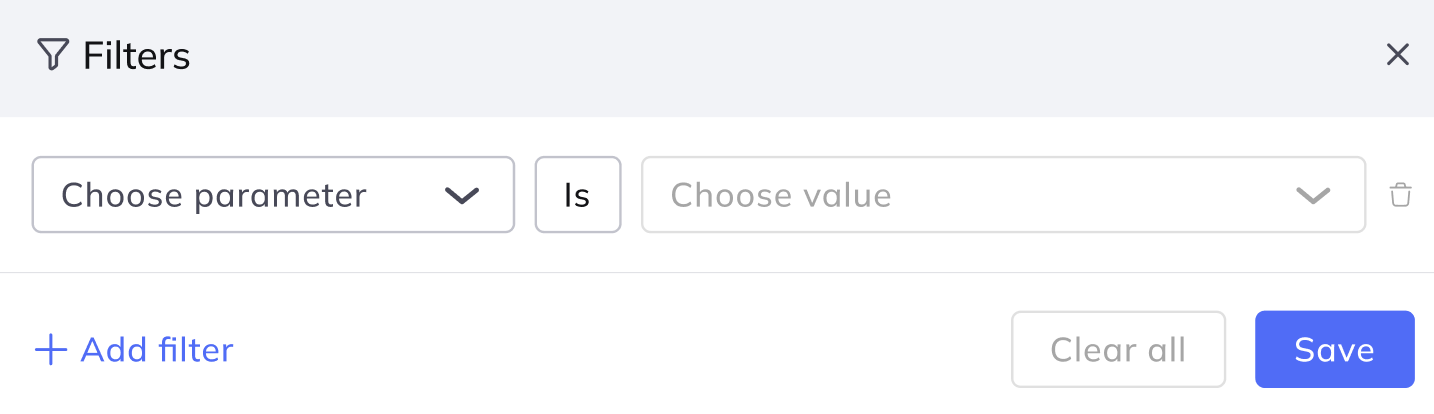
You can filter by:
- Vault
- Transaction type
- Status
- Asset
- Chain
- Direction
- Time
- Initiator
- Initiator type
To apply filters:
- Open the Transaction Feed.
- Select the filter control.
- Select one or more filter values, such as:
- Outgoing transactions
- Transactions in selected vaults or chains
- Apply the filters.
Filter settings persist through page reloads.
You can sort feed items by available date fields. Use sorting to focus on either the newest transactions or the most recently updated transactions.
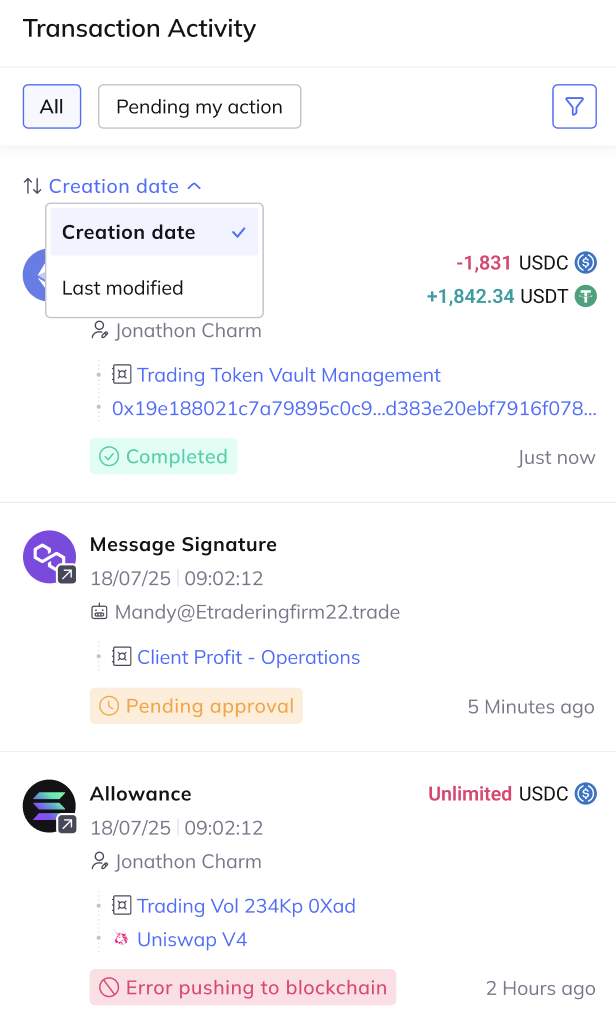
To change the sort order:
Open the Transaction Feed.
Select the sort control.
Choose a sort option, such as:
- Creation date
- Last modified date