Running the API Signer locally is a convenient way to test your Fordefi API integration and validate your setup during development. Before using the integration in production, we recommend moving the API Signer to a secure, reliable host designed to remain continuously available.
Do the following:
Download Docker Desktop for your system.
Log in to the Fordefi web console, navigate to User Management, and create an API User with the Trader role. Choose Access Token + request signing for API authentication. Store the access token securely and, optionally, whitelist an IP address for additional security. Learn more.
The access token should start with
eyJhbG..., for example:eyJhbG...Watch how to create an API user:
Now, set up the API Signer, as described below.
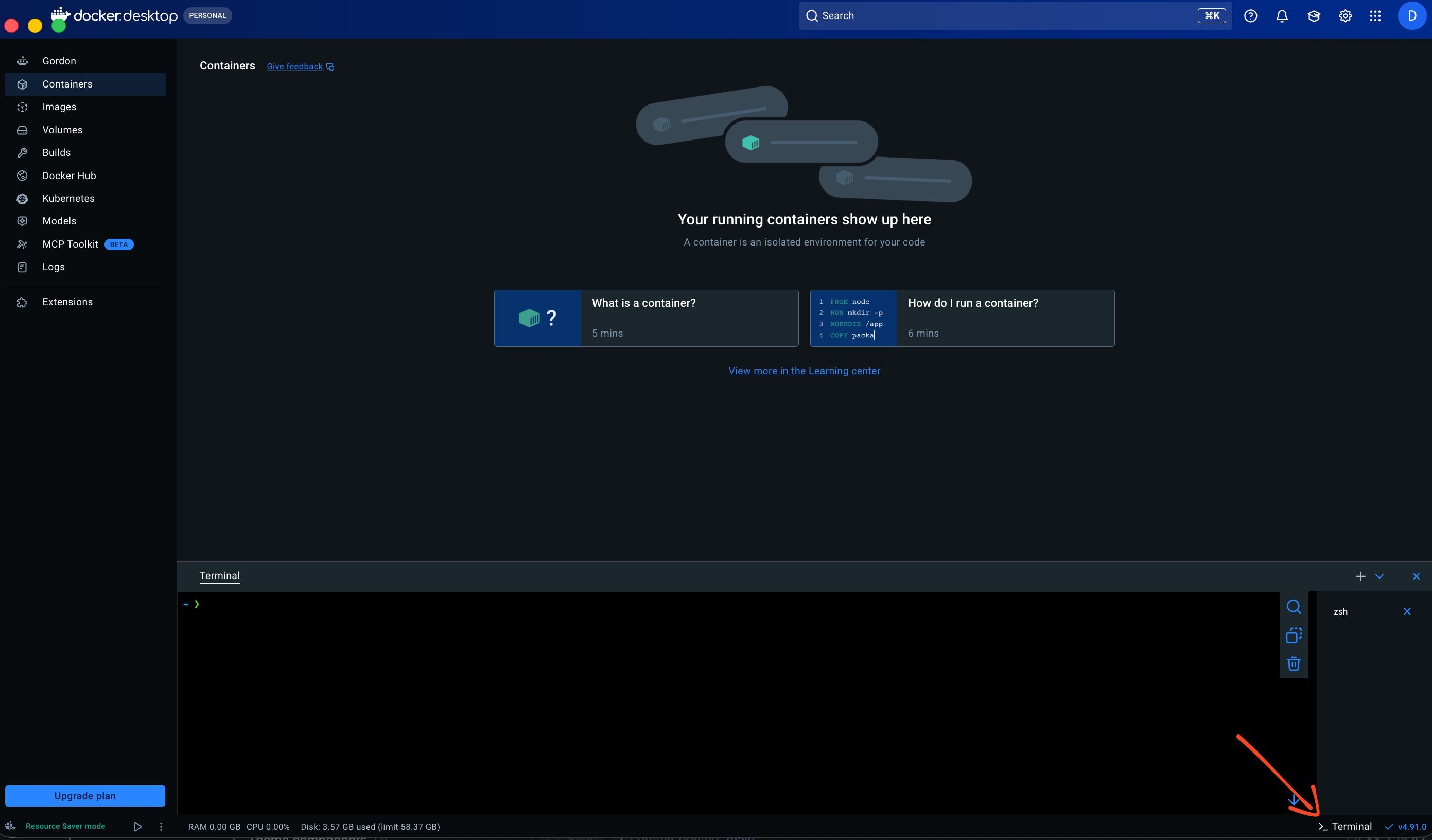
Open Docker Desktop and start a new terminal, or open a local terminal with Docker available.
Go back to the Fordefi web console, navigate to Settings > API Signer, and click Add API Signer.
Follow these steps to install the Docker image from Fordefi's JFrog Artifactory. Then, give your API Signer a name and continue until you reach the Link the API Signer step.
Go back to the Docker terminal and start the signer by running the following command:
docker run --rm --log-driver local --mount source=vol,destination=/storage -it fordefi.jfrog.io/fordefi/api-signer:latestIn the interactive menu, select Provision signer, and copy the public key displayed in the terminal, including the
-----BEGIN PUBLIC KEY-----and-----END PUBLIC KEY-----lines.Go back to the API Signer creation wizard in Fordefi and paste the complete public key, including its header and footer, then click Next.
Open the Fordefi mobile app. You should see an Add API Signer notification in your inbox.
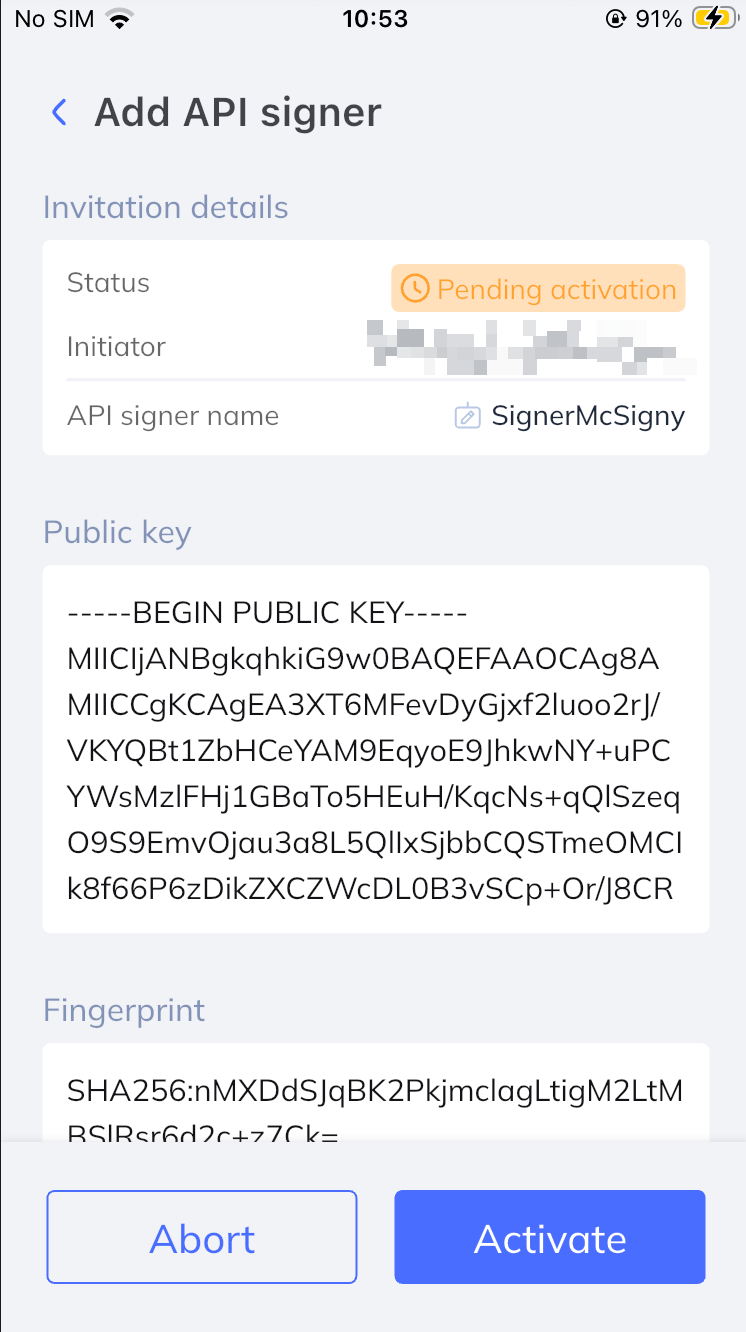
Open the notification, review the public key, and click Activate. A success message should appear.
After a few moments, the API Signer status should change to Active in the Fordefi web console. The terminal running the Docker image should also display info logs confirming that activation was successful.
Your API Signer should now be running. It must remain running to sign transactions initiated by registered API Users in your organization.
Watch how to set up an API Signer (steps 1 to 7):
To confirm that your API User is correctly registered with the API Signer, stop the signer, then run it again to open the interactive menu:
========================================
========= API-Signer Main Menu =========
========================================

Use the arrow keys to navigate: ↓ ↑ → ←
? API-Signer is provisioned. What do you want to do?:
    Run signer
  ▸ Show API users
    Configure signer
    Exit
Select Show API users to verify that the API User you created during the Before you start section is listed and provisioned. Then select Run signer to start the signer.
You're done!
To successfully transact, your API User must both authenticate with the Fordefi backend using the access token generated during its creation and sign transaction payloads with the corresponding private.pem key. You can learn more about creating an API User here and explore our API examples for practical implementations.
Remember: your API Signer must remain running to sign transactions initiated by the API User you registered.