After you connect a Paxos custody account, each connected Paxos profile appears as a custody vault in the Custody tab of the Connected Accounts screen.
Each profile can be created as a vault only once. Profiles that already linked to vaults do not appear in the list.
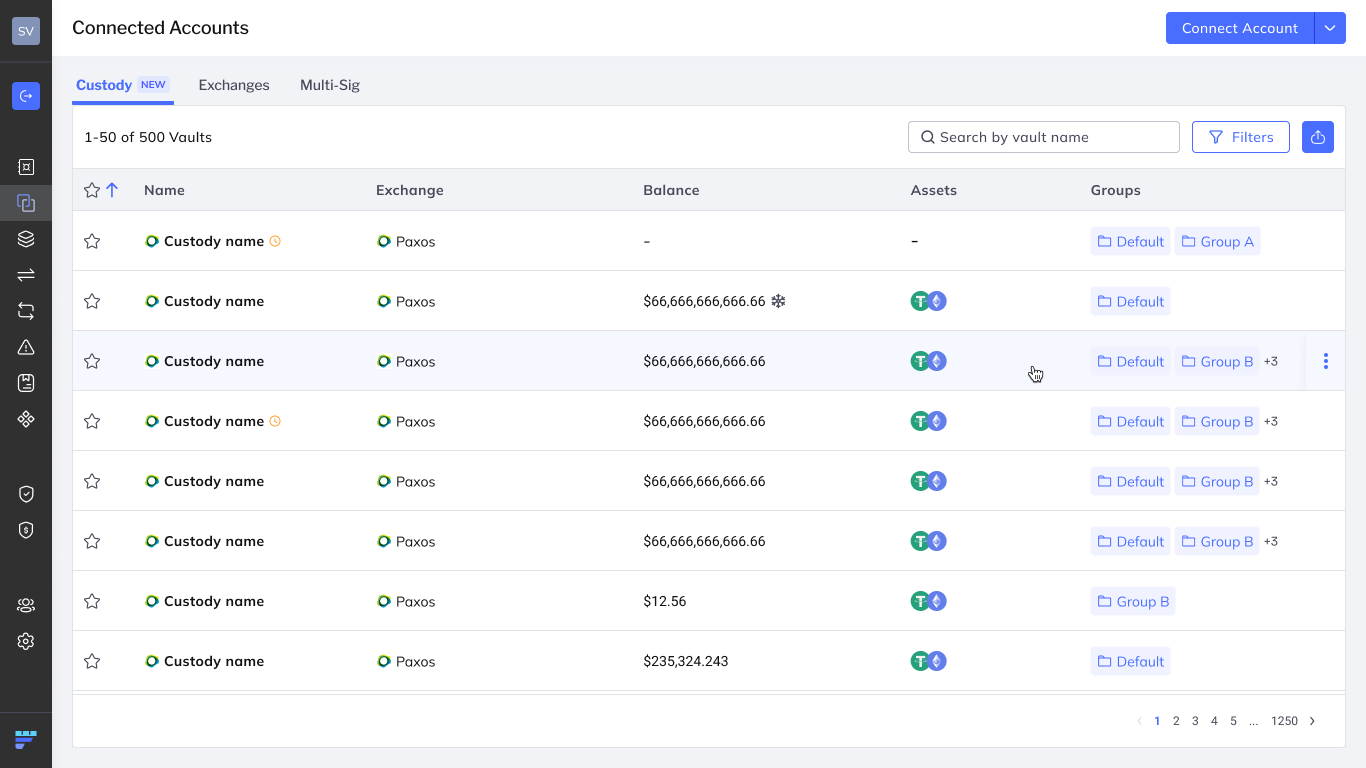
The Custody tab lists every custody vault in your organization, showing:
- Name: The vault name you set when connecting the profile
- Custodian: The custody provider (Paxos)
- Balance: The custody vault's total balance
- Assets: The assets held in the custody vault
- Groups: The vault groups the custody vault belongs to
To find a custody vault, search by vault name or click Filters.
A clock icon next to a custody vault's name means it is waiting for admin quorum approval. Until it's approved:
- Its balance and assets appear as a dash.
- It isn't added to its vault groups.
- In the Custody tab, click the kebab menu (⋮) on the pending custody vault's row.
- Select Abort.
- In the Abort custody connection dialog, click Yes to confirm.
Click a custody vault's name to open its page. The page has the same layout as an exchange vault page and shows:
- Account type: The custody provider (Paxos).
- Groups: The vault groups the custody vault belongs to.
- API Credentials Client ID: The Client ID of the Paxos API credential used for this custody vault.
- Total balance: The custody vault's balance, broken down by asset.
- Assets and Transactions tabs.
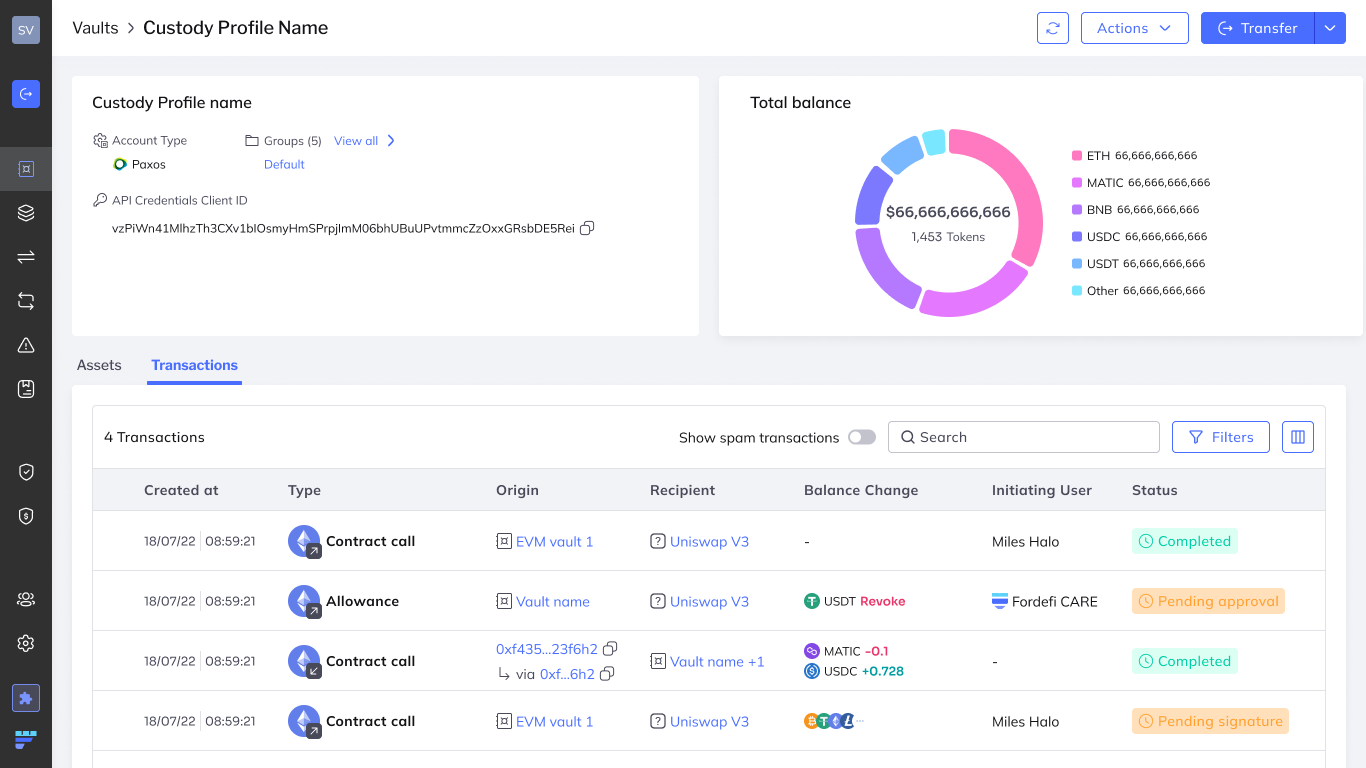
The Transactions tab shows only transactions made through Fordefi. Deposits and transfers made outside Fordefi don't appear.
Only admins can manage custody vaults.
- In the Custody tab, click the kebab menu (⋮) on the custody vault's row.
- Select Edit vault groups.
- Choose the groups and save.
Learn more about vault groups.
You can't archive a custody vault. Instead, you disconnect it, the same way you remove an exchange account. Your assets remain in custody at Paxos.