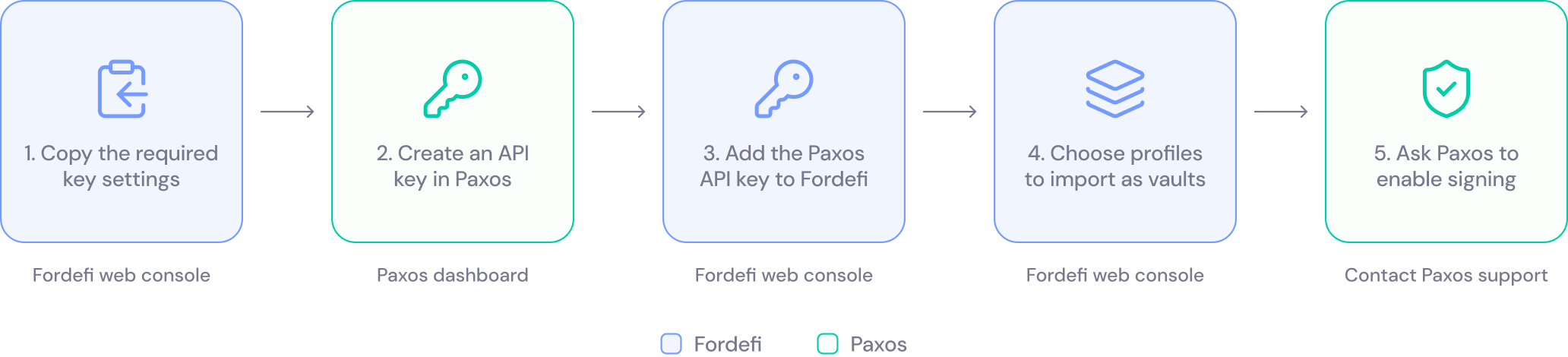
Connect your Paxos custody account to create custody vaults in Fordefi. You create an API credential in the Paxos dashboard, enter it in Fordefi, choose the Paxos profiles to connect, and approve the request on mobile.
- Admin role: Only admins can connect custody vaults.
- A Paxos custody account: If you don't have one, you can sign up with Paxos from the first step of the wizard.
- Access to the Paxos dashboard: You need permission to configure API credentials there.
- The Fordefi mobile app: Connecting a custody vault requires admin quorum approval, which is possible from the mobile app.
Open the Fordefi web console and click Connected Accounts. In the screen that appears, click the Custody tab.
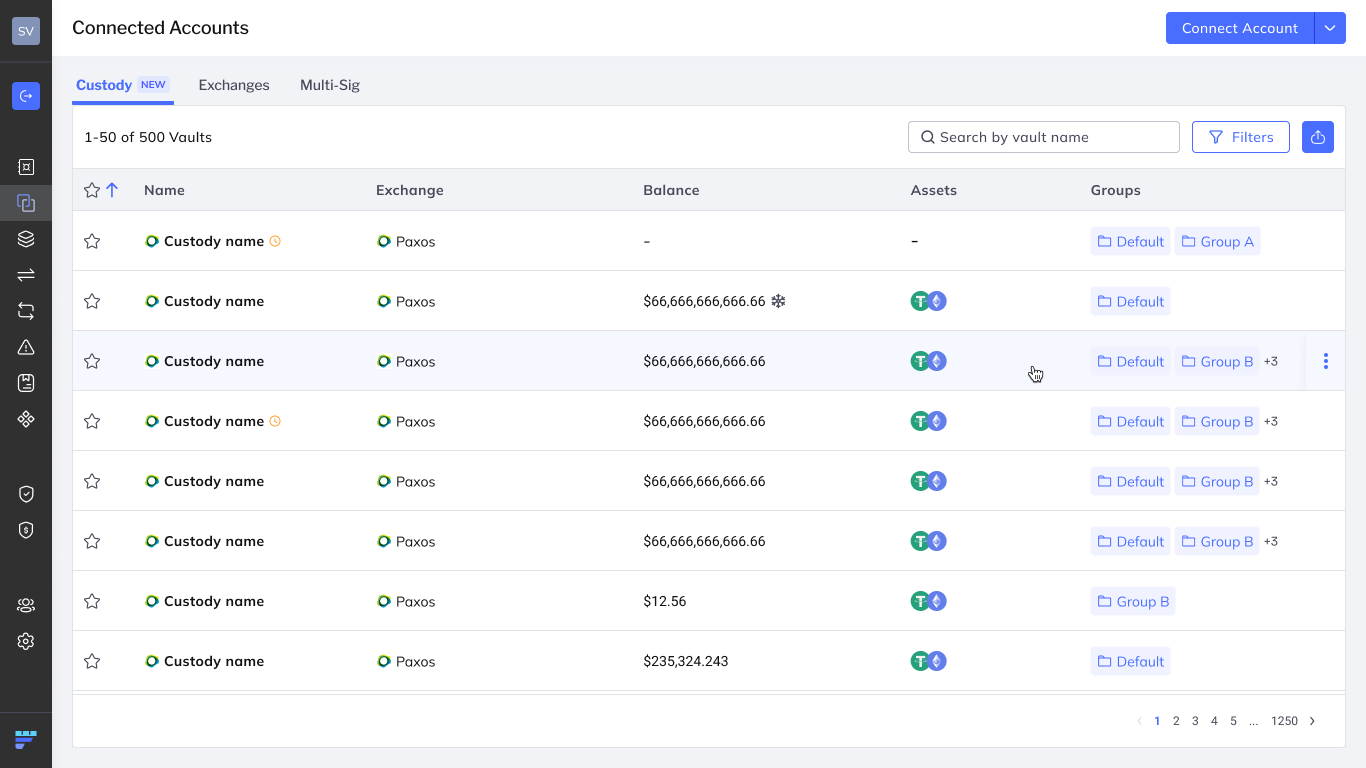
Click Connect Account.
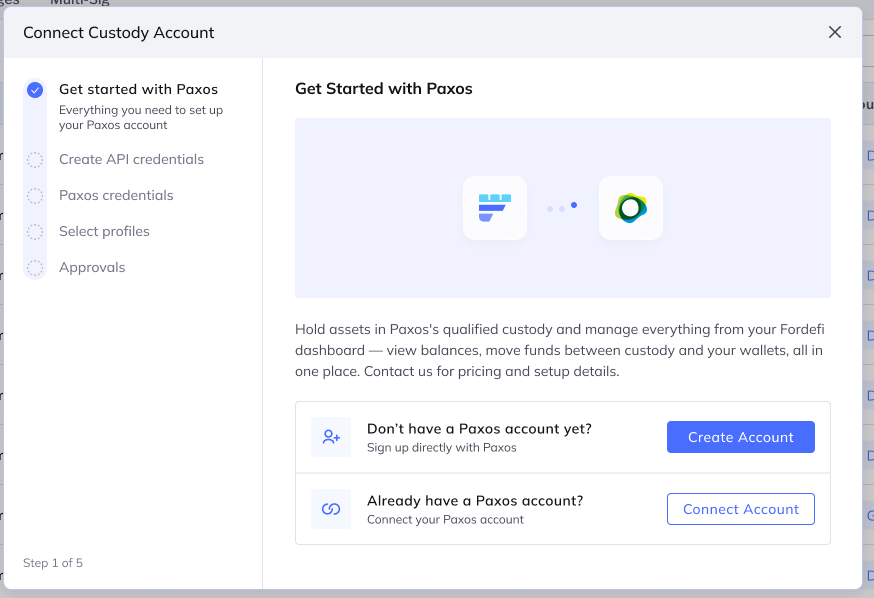
Choose one of the following:
Don't have a Paxos account yet? Click Create Account to sign up with Paxos. Return to Fordefi once your account is open.
Already have a Paxos account? Click Connect Account.
Before you start this procedure, contact Paxos support and provide them with the API key ID to enable signing on it.
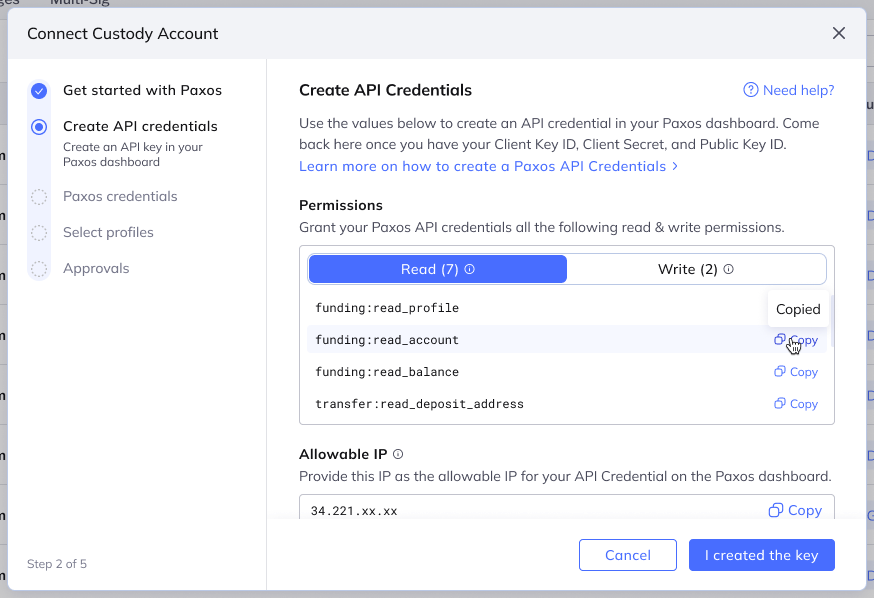
Fordefi shows the values that your Paxos API credential needs. Each one has a Copy button.
| Value | Where it goes in Paxos |
|---|---|
| Read permissions | API credential, read permissions panel |
| Write permissions | API credential, write permissions panel |
| Allowable IP | Allowable IPs, as a CIDR block |
| Public key | Request Signing > Public Keys, algorithm EdDSA |
In the Paxos dashboard, configure new API credential. See the Paxos guide to API credentials.
Permissions: Grant every read and write permission listed in Fordefi. In Paxos, use the search bar in each permissions panel to select them one by one.
Allowable IP: Below the permissions panels, enter the IP from Fordefi as a CIDR block (for example,
34.221.xx.xx/32) and click Add.Request Signing: Turn on Request Signing. Under Public Keys, click Add Public Key, paste the public key from Fordefi and select the EdDSA algorithm.
Save the credential in Paxos. In Fordefi, click I created the key.
Enter each value exactly as Paxos issued it, then click Next.
| Field | Where to find it in Paxos |
|---|---|
| Client ID | Developer > API Credentials, then open the credential you created |
| Client Secret | Shown only once, when you create the API credential |
| Public Key ID | API Credentials > your credential > Public Keys, next to the key's nickname |
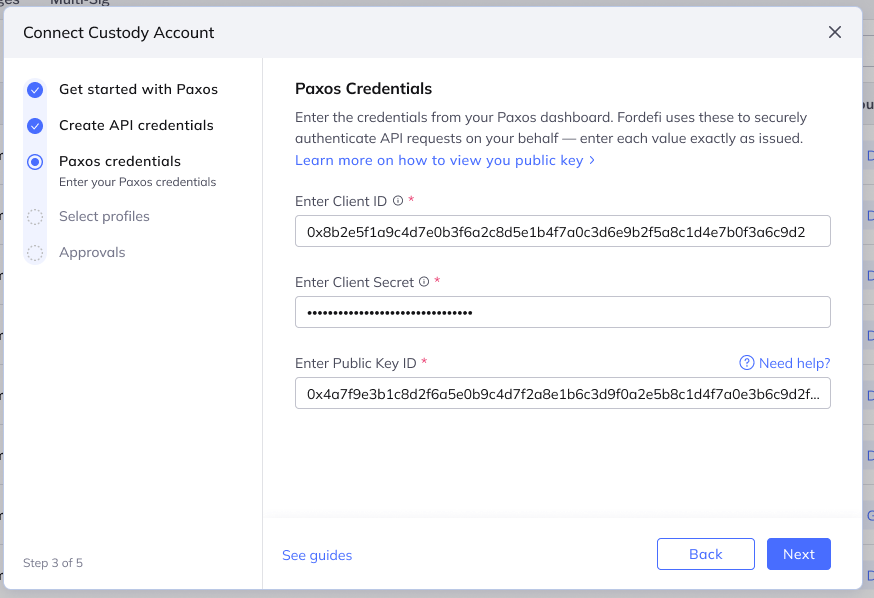
Fordefi validates the credentials. If any value is wrong, the wizard shows Some of your credentials are incorrect. Check the values and try again.
Paxos shows the Client Secret only once. If you didn't copy it, create a new API credential.
Each Paxos profile you select becomes a separate custody vault.
Select the profiles to connect. Use Search to find a profile, or Select all.
Enter a vault name for each selected profile. Vault names must be unique in your organization. Leave unchanged to select the default.
In Add to vault group, select a vault group for the new custody vaults. Leave unchanged to select the default.
Click Send for Approval.
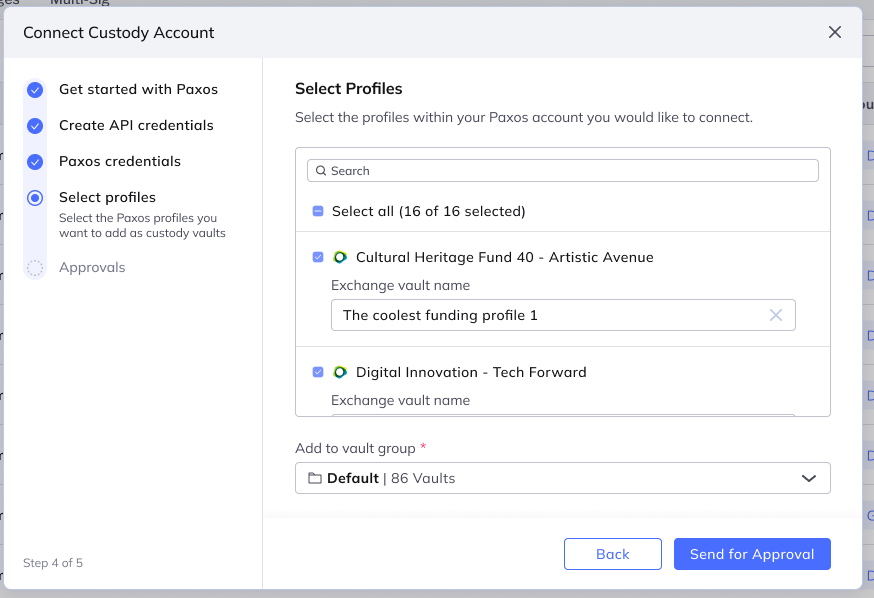
Open the Fordefi mobile app and approve the request, then click Done. The new custody vaults stay pending until the admin quorum approves.